 Token Counter
- Open Settings > Usage on claude.ai to see your session and weekly limits.
- In Claude Code, run /usage: it shows the same pool.
- Limits are percentages, not message counts.
On this page
To see how much Claude usage you have left, open Settings > Usage on claude.ai — the direct address is claude.ai/settings/usage. On Pro, Max, Team and seat-based Enterprise plans that page shows progress bars for your five-hour session limit and your weekly limit, the time remaining in the current session, and when the weekly limit resets.
In Claude Code, the same numbers answer to /usage.
Both tools draw on one pool: usage on claude.ai, Claude Code and Claude Desktop counts toward the same limit, as the limits explainer puts it.
Check your usage on claude.ai, step by step
- Sign in to Claude in a browser or in Claude Desktop.
- Open Settings, then Usage, or go straight to claude.ai/settings/usage.
- Look at the Plan usage limits section at the top. The usage limits article describes it as showing your progress toward both the session limit and the weekly limits.
- Read Current session: how much of the five-hour session limit you have used so far, plus the time remaining in the session.
- Read Weekly limits: when your weekly limit resets, for all models and, if your plan includes it, for Fable.
- If you have turned on usage credits, the same page has a Usage credits section. The usage credits article notes that the dashboard keeps your included plan usage separate from credit spending.
Why you see a percentage, not a message count
Anthropic does not publish a number of messages per plan. In its words, how much you can do depends on the length and complexity of your conversations, the model and the features you use — “so there’s no fixed message count”, the pricing page says.
The help center lists what makes a message more expensive: message length, attachment size, how long the current conversation is, tools such as Research and web search, the model, the effort level, artifacts, and multi-step tasks like running code or browsing.
So the same percentage can stand for a few long document reviews or for many short questions. The bar tells you where you stand. It does not tell you how many messages are left.
Check your usage in Claude Code
Claude Code draws from the same limits as the chat: on Pro and Max, the Claude Code article says all activity in both tools counts against the same limits.
/usageshows session cost, plan usage limits and activity stats./costand/statsare aliases for the same screen.- On Pro, Max, Team and Enterprise plans,
/usagealso breaks down what counts against your plan limits — skills, subagents, plugins and MCP servers as shares of recent usage, per the costs docs. That breakdown is computed from local history, so usage from other devices or claude.ai is not included in it. The plan bars themselves cover the whole account. - The dollar figure in the Session block is meant for API users. For Pro and Max subscribers, the session cost figure isn’t relevant for billing.
- If you build a custom status line, Claude Code passes
rate_limits.five_hourandrate_limits.seven_daywith a used percentage and a reset time, and the status line docs list both fields. They appear only for Pro and Max subscribers (or behind a gateway with spend limits) and only after the first API response in the session.
One inconsistency to know about: the Pro/Max help article tells you to monitor your remaining allocation with /status, but the current command reference describes /status as version, model, account and connectivity, and puts plan limits under /usage. Use /usage.
The warnings Claude shows before you run out
You do not have to watch the bar to get a warning. As you get close, Claude shows “Approaching session limit” or “Approaching weekly limit”, or a percentage such as “You’ve used X% of your weekly limit” when it is available; the error messages article lists the exact wordings.
When you reach a limit without usage credits, the message tells you when you can continue: “5-hour limit reached - resets [time]” or “You’ve reached your weekly limit. It resets [day] at [time].” For what each reset means, see when limits reset.
Keep the number on screen instead of opening Settings
The Usage page is a snapshot: you go to Settings, look, and go back to the chat. If you check often, that gets old.
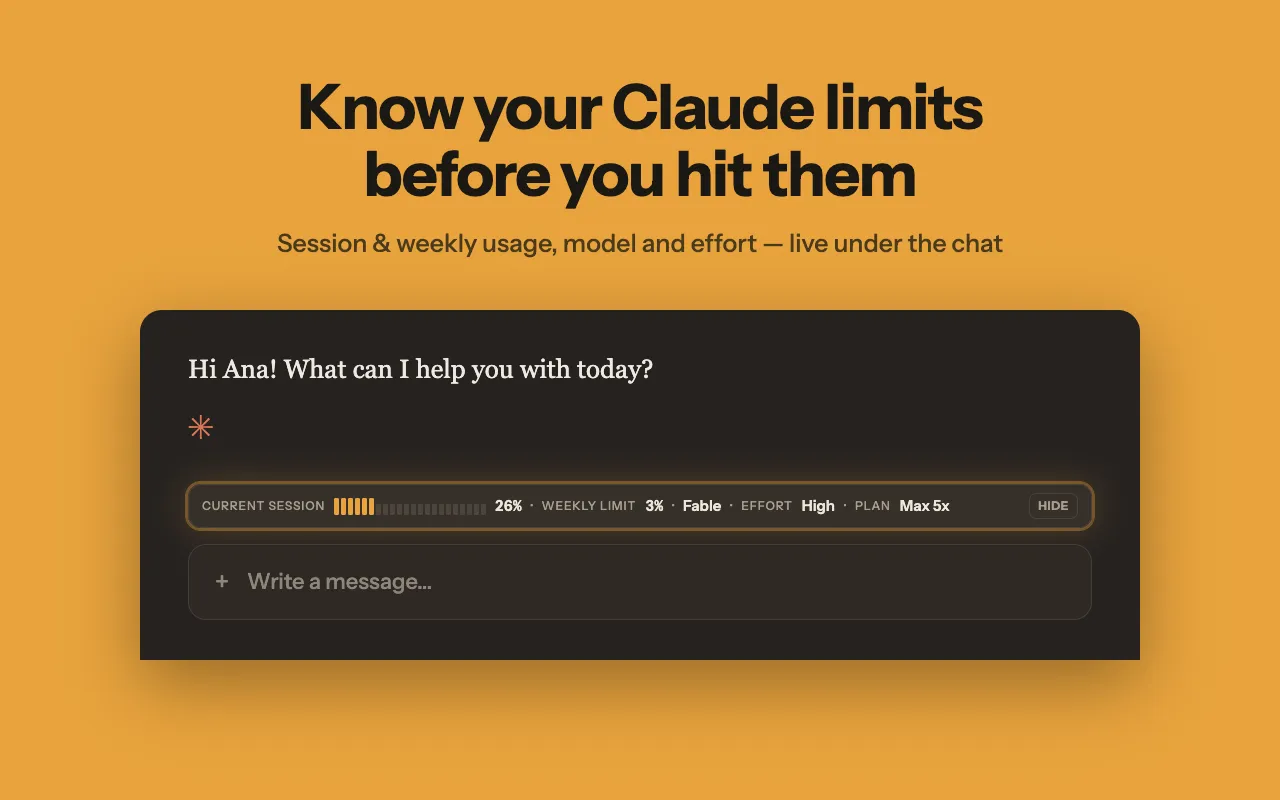
Token Counter is our Chrome extension that puts the same numbers next to your work. It adds a bar under the message box on claude.ai with your current session, weekly limit, model and effort, and its toolbar popup has a countdown to the next reset. It reads the usage data that Claude’s own settings page shows, so work you do in Claude Code is already part of the figure. Its only site access is claude.ai. We suggest it for Pro and Max only, as it is not verified on the Free plan.
Edge cases
Free plan. Free accounts have a session-based usage limit that resets every five hours, and the number of messages varies with demand — the Free plan article describes both. The help center documents the Usage page progress bars for Pro, Max, Team and seat-based Enterprise plans; it does not describe what Free users see there. On Free, the main signal is the notice Claude shows when you have reached your limit.
Team plans. Limits are per member, not shared across the team, per the Team plan article. One person hitting their limit does not affect anyone else, and each member checks their own Usage page.
Usage-based Enterprise. These plans have no plan or seat-level usage limits; usage is billed at API rates, the Enterprise article explains. You can still track consumption in Settings > Usage.
Several devices. Limits belong to the account, not the device. Your usage limits are shared across your Claude account, including Claude Mobile and Claude Code, as the limit resets article notes.
Claude Code with an API key. If the ANTHROPIC_API_KEY environment variable is set, Claude Code uses that key instead of your subscription and bills API usage. That usage will not appear in your plan bars, because it is not plan usage.
What to do when the bar is almost full
- Wait for the reset. The session limit resets every five hours and the weekly limit at a fixed time assigned to your account, per the Pro plan article.
- Turn on usage credits. On paid plans, work continues at standard API rates after a limit, up to the monthly spend limit you set.
- Upgrade. A higher plan’s limits apply right away. The Pro vs Max guide shows what each tier adds.
- Use less per message. Anthropic suggests starting a new conversation when a long chat is near the limit, lowering the effort level, and turning off tools you don’t need. Files kept in a project are cached and count less against your limits when reused.
Token Counter is an independent extension and is not affiliated with Anthropic.