 SQLite Explorer
- A .db file is a database file. Many are SQLite, but the file name alone does not prove it.
- A SQLite file starts with the text "SQLite format 3". Check the first 16 bytes before you install anything.
- "File is not a database" usually means the file is not SQLite or is encrypted. Encrypted files need the key from the app that made them.
On this page
A .db file is a database file, and very often it is a SQLite database: a whole database kept in one ordinary file. The name alone proves nothing, though. SQLite’s application-file page says SQLite has no file naming requirements, so an app can give its files any suffix it wants. Other programs use .db too, for files that are not SQLite at all. A check of the first 16 bytes tells you which kind you have: a SQLite file starts with the text “SQLite format 3”. Do that first, then pick a way to open it.
What a .db file is
SQLite is a database engine, and its most deployed page lists it in every Android device, every iPhone, every Mac, every Windows 10 and 11 installation, and every Firefox, Chrome and Safari browser.
That is why you find these files on your own disk: many programs keep their local data in SQLite. The tutorial in the Python sqlite3 docs uses the same suffix: its example database is tutorial.db.
Not every .db is SQLite. Two other kinds you may meet:
- Thumbs.db on Windows, a hidden file where File Explorer caches thumbnails.
- Paradox tables, files in the Paradox database format. Microsoft’s Paradox driver page names the driver for them
Microsoft Paradox Driver (*.db ).
How to tell what kind of .db file you have
Every valid SQLite database begins with the same 16 bytes. The SQLite file format spec lists them in hex, and they spell the text “SQLite format 3” followed by a zero byte.
On a Mac, open Terminal in the folder with the file and run:
head -c 16 file.db | xxdFor a SQLite file, the right end of the line reads SQLite format 3. (the dot stands for the zero byte). The file command names the format for you:
file file.dbFor a SQLite database it answers SQLite 3.x database, followed by details. When we ran it on a file of random bytes, it said only data.
On Windows, if you have PowerShell 7, this shows the first 16 bytes:
Format-Hex -Path .\file.db -Count 16The -Count parameter was introduced in PowerShell 6.2, according to the Format-Hex reference, so older versions such as Windows PowerShell 5.1 do not have it.
There are three possible results:
- “SQLite format 3”: a SQLite database. The next three sections show ways to open it.
- Readable text, but something else: another program’s format. Skip to the section on files that are not SQLite.
- Unreadable bytes: an encrypted SQLite database, or a binary format from another program. The bytes alone do not tell you which. Encrypted SQLite files usually have no readable header, as the section on encrypted files below explains.
How to open a SQLite .db file on Windows
Work on a copy, so a wrong click cannot change the original. If a file with the same name plus “-wal” sits next to it, copy that too: the last section explains why.
For a desktop program, use DB Browser for SQLite, an open source program that opens and edits SQLite files, SQLCipher-encrypted ones included, on Windows, macOS and most versions of Linux.
Its download page includes a .zip with no installer for 64-bit Windows, which helps on a PC where you cannot install programs. Unzip it, start the program and open your copy of the file.
If you prefer a command line, the SQLite download page has a zip of tools for Windows x64 that includes the SQLite shell, sqlite3.exe. It works like the sqlite3 command in the Mac section below, with two differences.
First, in PowerShell, start it from the unzipped folder as .\sqlite3.exe: PowerShell’s command precedence rules say a program in the current folder needs the .\ prefix or a full path.
Second, name your copy of the file when you start it. Double-clicking sqlite3.exe opens a temporary in-memory database instead of your file, as the sqlite3 shell docs explain.
How to open a .db file on a Mac
Try Terminal first. On the Mac we tested this on (macOS 26.5.2), sqlite3 was already installed. If Terminal cannot find the command, use DB Browser instead. Run:
sqlite3 -readonly file.db .tablesThis prints the names of the tables and exits. Leave out .tables and you get a prompt where you can type SQL statements. The -readonly part keeps the file safe: SQLite’s shell docs say read-only mode means “write will be prohibited”.
An empty answer proves little, so run .schema instead. On files that were not SQLite, the standard sqlite3 3.53.0 we tested printed nothing for .tables, while .schema reported “file is not a database” both there and in the Mac’s own copy.
If you run sqlite3 without -readonly, check the file name before you press Enter. The same docs warn that a file name that does not exist creates a new database automatically, so a typo in the path gives you a new, empty database instead of your file.
For a window instead of a prompt, DB Browser for SQLite has a Universal build for the Mac, or you can install it with Homebrew:
brew install db-browser-for-sqliteHow to open a .db file in the browser
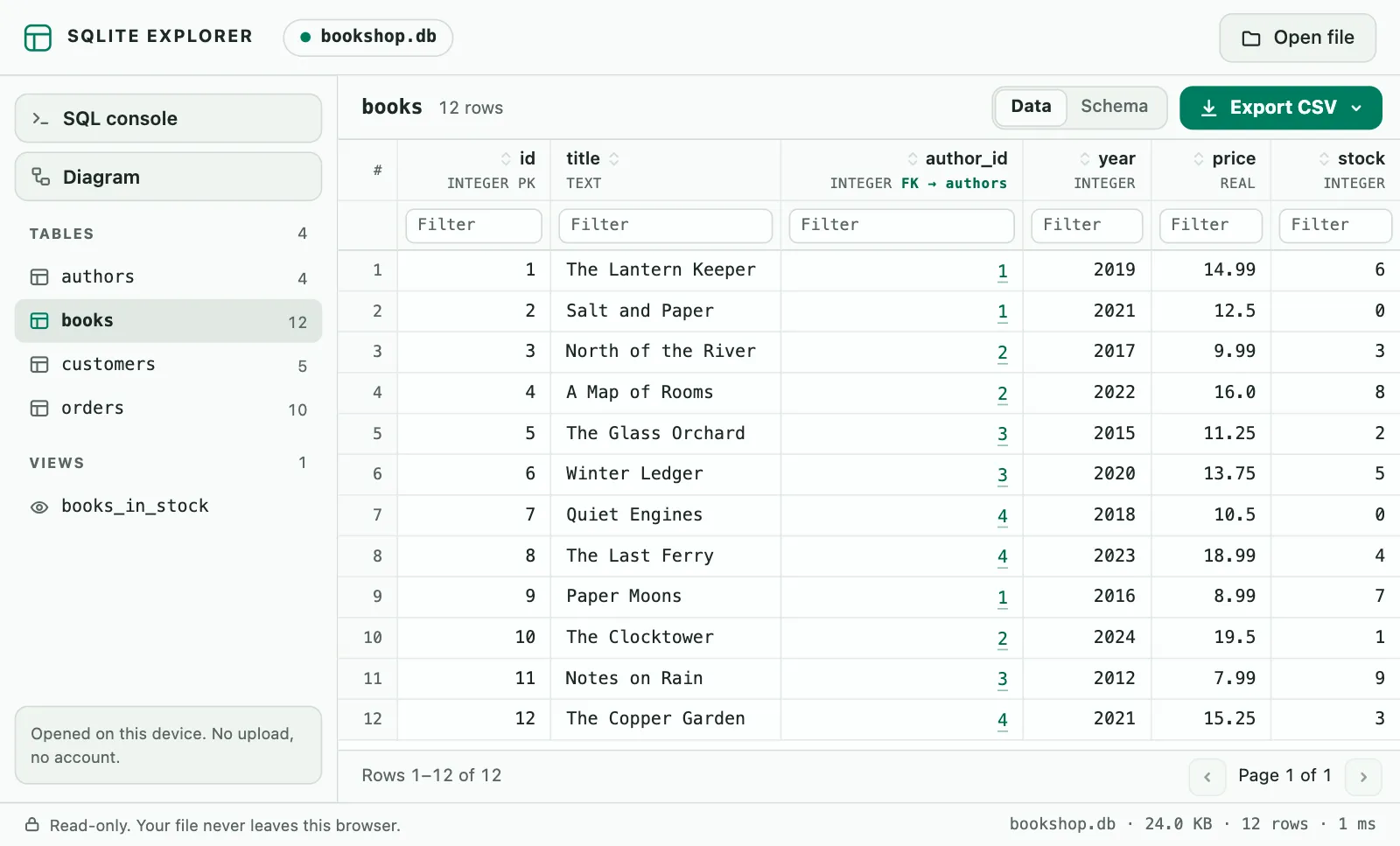
SQLite Explorer, our Chrome extension, opens a SQLite file in a Chrome tab, without a desktop program or the command line. You drop a .db, .sqlite3 or .db3 file on its tab, and a copy of SQLite built into the extension reads it right there. The extension makes no network requests, so the file is not uploaded anywhere. It lists the tables with their row counts, lets you filter and sort rows, and exports the filtered rows, a whole table or a query result as CSV, a format Excel opens. Before you install it, run the 16-byte check and read the limits. It reads SQLite files only, so a .db that is not SQLite, such as Thumbs.db or a Paradox table, will not open, and neither will an encrypted database (SQLCipher, SEE). It is read-only, so you can view and export data but not edit it, and files larger than 1 GB are not supported. If the database is in WAL mode, it warns you that recent changes may be missing.
To list the tables from the command line, from SQL or from Python, see our guide to listing SQLite tables.
When it is not SQLite or it is encrypted
Open the wrong kind of file in a SQLite tool and the error, when you get one, is short: “file is not a database”. That is the SQLITE_NOTADB error, which the SQLite result codes page describes as the file “does not appear to be an SQLite database file”. It has two common causes: the file is not SQLite at all, or it is SQLite but encrypted. The message alone cannot tell you which. In our test, .schema gave the same “file is not a database” error for a file of random bytes and for a plain text file, both named .db. The 16-byte check narrows it down: readable text means another program’s format, but unreadable bytes can be an encrypted database or another program’s binary format.
Thumbs.db. Leave it alone. A Microsoft thumbnails policy describes File Explorer caching thumbnails of items in network folders “in hidden thumbs.db files”. Nothing in it is data you need.
Paradox. Microsoft Access is no longer a sure way to open it. Access 2010 removed import, export and linking for Paradox 3 to 7 files, according to Microsoft’s list of Access 2010 changes, which points to an earlier version of Access instead. If you need the data, ask whoever made the file for an export, such as CSV.
Encrypted with SEE. SEE is SQLite’s own encryption extension. The SEE readme says an encrypted database “appears to be white noise”, the public version of SQLite cannot read it, and a wrong key also produces “file is not a database”.
Encrypted with SQLCipher. SQLCipher’s design notes say each database starts with a random salt in its first 16 bytes, and the whole encrypted file looks like random data.
Either way, you need the key, and it comes from the app that made the file. DB Browser for SQLite works with SQLCipher files, so if you know the password, you can open the file there. If the app keeps its key to itself, ask its vendor for an export of your data.
Keep the -wal file with it
Sometimes a second file sits next to the database with “-wal” added to its name. For file.db it is file.db-wal, always in the same folder, as SQLite’s temporary files page describes.
Copy or move the two together. SQLite’s WAL documentation counts the -wal file as part of the database: if the two are separated, changes that were already saved might be lost or the database file might become corrupted.