 SQLite Explorer
- From a terminal, run sqlite3 -csv -header shop.db "SELECT * FROM orders;" > orders.csv. It kept long values whole in every version we tested.
- In the sqlite3 shell on 3.53 or later, run .mode csv --limits off --titles on before exporting. Without it, values were cut at 300 characters.
- Run that .mode line before .excel too. In a fresh 3.53.0 or 3.54.1 shell, .excel wrote 00123 in single quotes, NULL as a word and long values cut.
On this page
To save a SQLite table or query as a CSV file, run one command in a terminal:
sqlite3 -csv -header shop.db "SELECT * FROM orders;" > orders.csvInside the sqlite3 shell, version 3.53 or later, type .mode csv --limits off --titles on, then .once orders.csv, then your query. For Excel, type .excel instead of the .once line.
The usual shell recipe is .headers on and .mode csv. In our tests on SQLite 3.53.0 and 3.54.1, it cut every value longer than 300 characters. We ran the tests on October 17, 2026, with sqlite.org’s official 3.54.1 (released October 16) and 3.54.0, Homebrew’s 3.53.0, and the official 3.51.3. sqlite3 --version shows yours.
Export a table or query with one command
The sqlite3 CLI docs list both options: -csv sets the output mode, and -header adds a row of column names. For part of a table, change the query, for example to SELECT id, total FROM orders WHERE status = 'refunded';. Don’t know the table name? List the tables first.
Add -readonly in case the path is wrong. Given a misspelled file name, 3.54.1 created an empty database, then failed with “no such table”. With -readonly it stopped with “unable to open database” and created nothing.
Export from inside the sqlite3 shell
On 3.53 or later, type:
.mode csv --limits off --titles on
.once orders.csv
SELECT * FROM orders;
On 3.53.0 and 3.54.1 this gave a file byte-identical to the one-line command. On 3.51 and earlier, use .headers on and .mode csv in place of the first line. 3.51.3 rejects the new options with extra argument: "off" and writes values separated by |.
Why long values get cut at 300 characters
SQLite 3.53.0 came out in April 2026. Its release notes say interactive sessions now draw results in boxes, while “Batch CLI sessions use the legacy output format for compatibility.”
The output mode docs give the new interactive default as --limits 5,300,20. The middle number caps a value at 300 characters, and the docs add: “The character limit works in all output modes.”
In our tests .mode csv kept that limit. On 3.53.0 and 3.54.1, a 500-character value was saved as 300 characters plus “…” and no warning was shown. The .headers on recipe and sqlite.org’s own example both did this. sqlite3 puts text with a space, comma or accented letter in double quotes, and cutting such a value also drops the closing quote. Python’s csv module then read one such row of our orders table as 3 fields instead of 8. The docs don’t say outright that CSV files get cut, so the cut is our test result, not a documented rule.
Ways around it:
- Add
--limits offto the.mode csvline. - Start the shell with
sqlite3 -csv shop.db(3.54 or later). The 3.54.0 entry in the same release notes says-csv“automatically disables display limits, for legacy compatibility.”
Scripts are not automatically safe. The output mode docs describe batch mode as running “when both standard input and standard output are connected to a file or pipe”. In our tests what mattered was where the output went. On 3.53.0 and 3.54.1, sqlite3 shop.db < export.sql with the .headers on recipe inside cut values when its output went to the terminal. With the output sent to /dev/null, they stayed whole. Put --limits off in scripts too.
Open the result in Excel with .excel
The CLI docs say .excel writes the next result as CSV to a temporary file, opens it in your default spreadsheet app, then deletes the file. In our tests that held only after the mode was set:
.mode csv --limits off --titles on
.excel
SELECT * FROM orders;
Without the first line, a fresh 3.53.0 or 3.54.1 shell wrote invalid CSV:
'00123'in single quotes- NULL as the word
NULL - values with double quotes or line breaks left unquoted
- long values cut at 300 characters
With the .mode line first, the output was clean. 3.51.3 wrote valid CSV either way, without a header row, because it rejects the .mode line.
Excel then applies its own rules, which we did not test. Microsoft’s large-numbers page says Excel drops the zeros at the start of numbers like 00123 and keeps 15 significant digits. In a 19-digit ID, every digit after the 15th becomes zero. To keep such columns as text, import the file with Data > From Text/CSV and set their data type to Text.
Microsoft’s UTF-8 page says Excel opens a UTF-8 CSV normally “if it was saved with BOM”, a byte order mark at the start of the file. None of the sqlite3 builds we tested wrote a BOM, so for accented letters or emoji use Data > Get Data > From file > Get Data from Text/CSV.
How NULLs, BLOBs and special characters are written
What the one-line command wrote with 3.54.1:
| In the database | In the CSV file |
|---|---|
Smith, John |
"Smith, John" |
said "hi" |
"said ""hi""" |
| Text with a line break | Quoted, line break kept |
| An empty string | "" |
| NULL | An empty field |
| The control character ESC | ^[ |
The BLOB x'00FF41' |
^@, a raw FF byte, A |
The quoting follows RFC 4180. On 3.53.0 and later, rows end in CRLF, the Windows-style line ending. The output mode docs say CSV always uses it, “regardless of the .crlf setting”.
To tell NULL from an empty string, add -nullvalue NULL to the command or, on 3.53 or later, --null NULL to the .mode line. Empty strings stay "". Both worked on 3.53.0 and 3.54.1, but 3.54.0 ignored them.
The output mode docs say that since 3.50.0 the shell shows most control characters the way cat -A does. In our CSV files 3.53.0 and 3.54.1 did, while 3.51.3 and 3.54.0 wrote the ESC byte as stored. --escape off on the .mode line turns this mapping off.
Our test BLOB didn’t survive. 3.53.0 wrote it as "", and a BLOB of plain letters, x’414243’, came out as the text ABC. Select hex(data) instead, where data is your BLOB column. The core functions page says hex() returns “the upper-case hexadecimal rendering” of a BLOB. On 3.53.0 and 3.54.1, --blob-quote hex gave lower-case hex.
With no rows, --titles on and .headers on gave an empty file. On 3.54.0 and later, --titles always writes the header anyway (3.53 rejects it), and so did the one-line command’s -header.
Export to CSV with Python
Python’s sqlite3 and csv modules do the same:
import csv
import sqlite3

con = sqlite3.connect("file:shop.db?mode=ro", uri=True)
cur = con.execute("SELECT * FROM orders")
with open("orders.csv", "w", newline="", encoding="utf-8") as f:
    writer = csv.writer(f)
    writer.writerow([d[0] for d in cur.description])
    writer.writerows(cur)
con.close()
mode=ro opens the file read-only, as in the sqlite3 module docs example. A wrong path then raises “unable to open database file” instead of creating an empty database.
The csv module docs say to open the file with newline='' and describe two traps. Python’s None is written as an empty string, which “isn’t a reversible transformation”, so NULL and an empty string look alike. Other values are “stringified with str()”, so our BLOB became the text b'\x00\xffA'. Fix both in the query with hex(data) and IFNULL(col, 'NULL').
For Excel, use encoding="utf-8-sig". The codecs docs say this codec puts a BOM first. In our test on Python 3.11, long values stayed whole.
Export without the command line
Online converters such as MyGeodata take an uploaded database and return CSV, so the file leaves your computer.
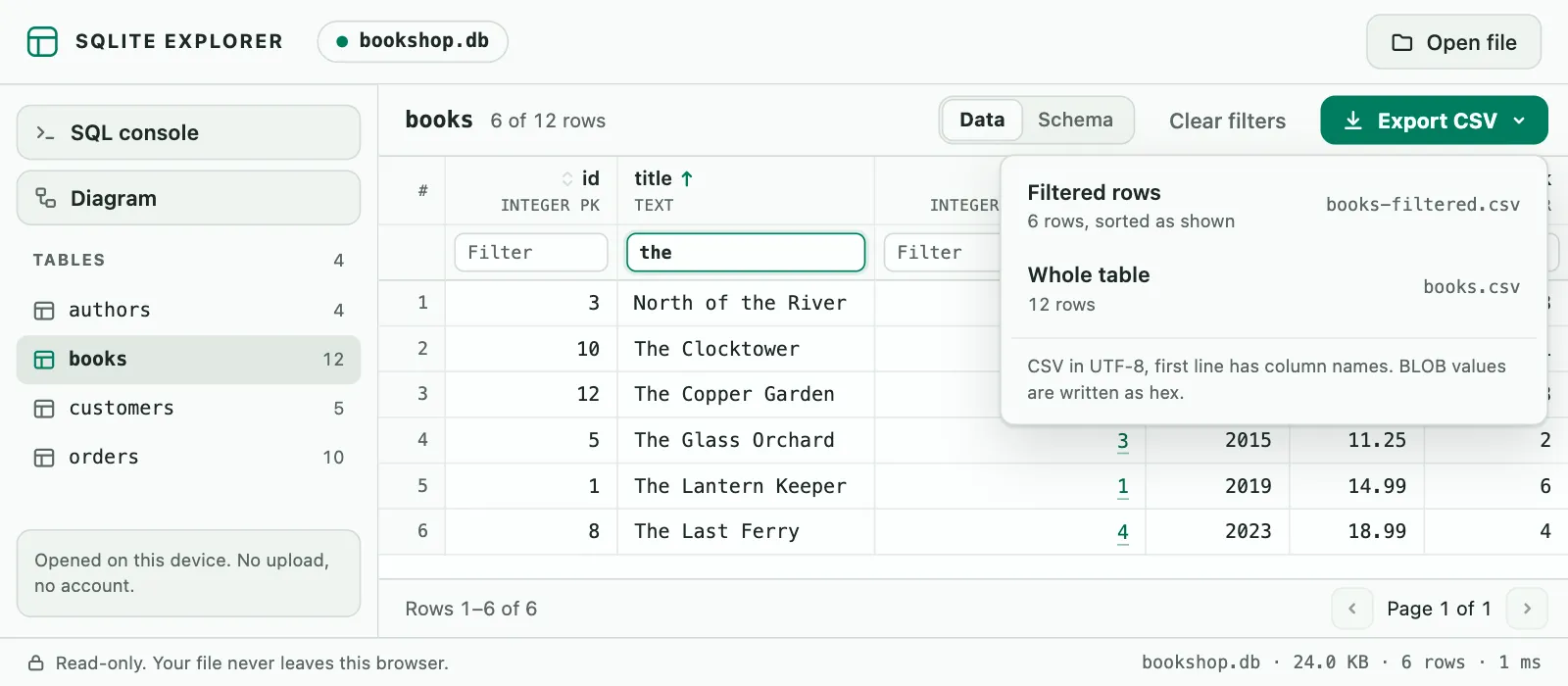
For a one-off export without a terminal, SQLite Explorer, our Chrome extension, works in a browser tab. Drop a .db, .sqlite3 or .db3 file on its tab, then filter and sort the rows. It can export CSV in three ways: the filtered rows exactly as sorted on screen, the whole table, or the result of a query from its read-only SQL console. The file is read into the memory of that tab and is not uploaded. The CSV is created on your device as an ordinary download, and the extension makes no network requests. Its limits: it reads SQLite files only, not MySQL or PostgreSQL servers or .sql dumps, and cannot open encrypted databases (SQLCipher, SEE). It is read-only, so you can view and export data but not edit it. Files larger than 1 GB are not supported, and for a database in WAL mode it warns that recent changes may be missing.
SQLite Explorer is an independent extension and is not affiliated with the SQLite project.