ExtensionsDeveloper toolsSQLite Explorer
 SQLite Explorer
Open and browse SQLite database files in Chrome
Someone attaches a .db file to a bug report, an app keeps its local data in SQLite, or a script you wrote left a database behind. You want to see what is inside, but a desktop database browser means an installer, admin rights and a new interface for a one-off look.
Add to Chrome — free (SQLite Explorer)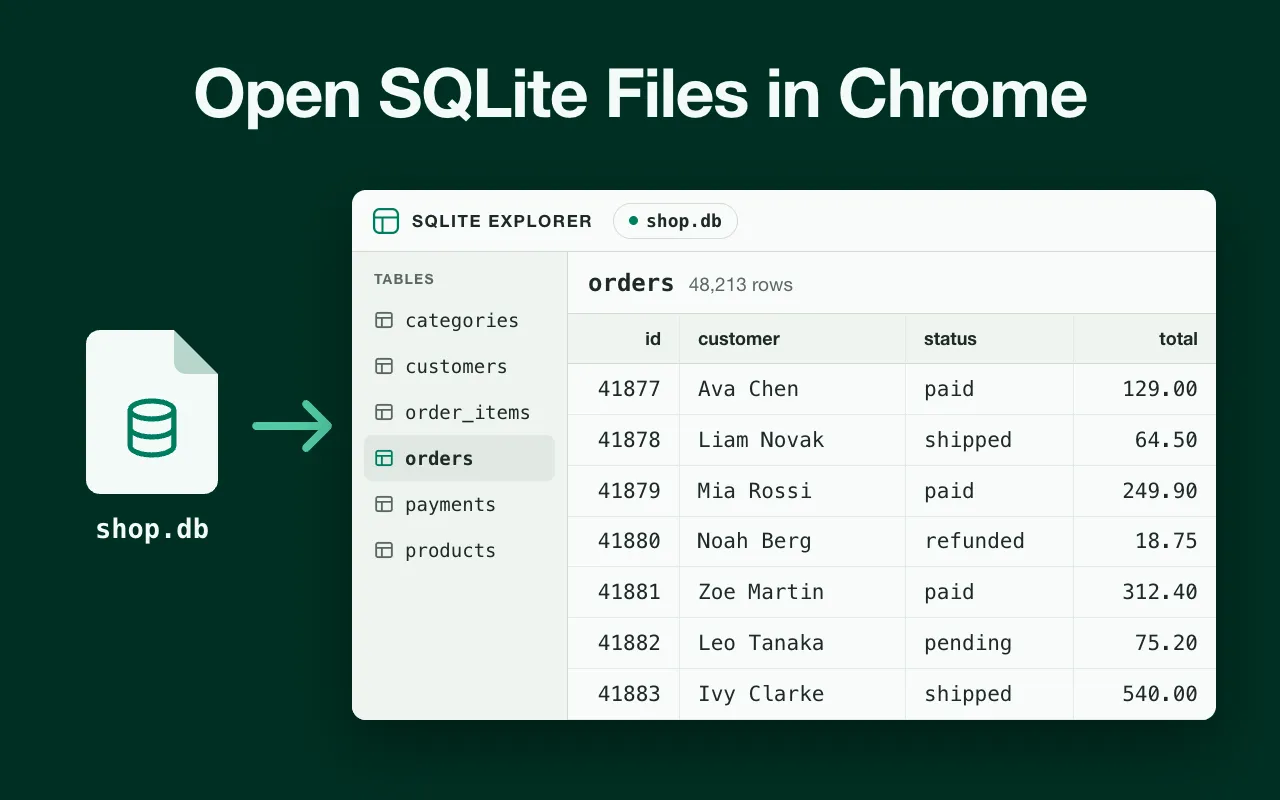
SQLite Explorer opens the file in a Chrome tab and shows its tables straight away.
What it does
SQLite Explorer opens a database file in a browser tab, lists its tables and lets you filter, sort and export rows without writing SQL.
- Left panel with every table and its row count, plus views
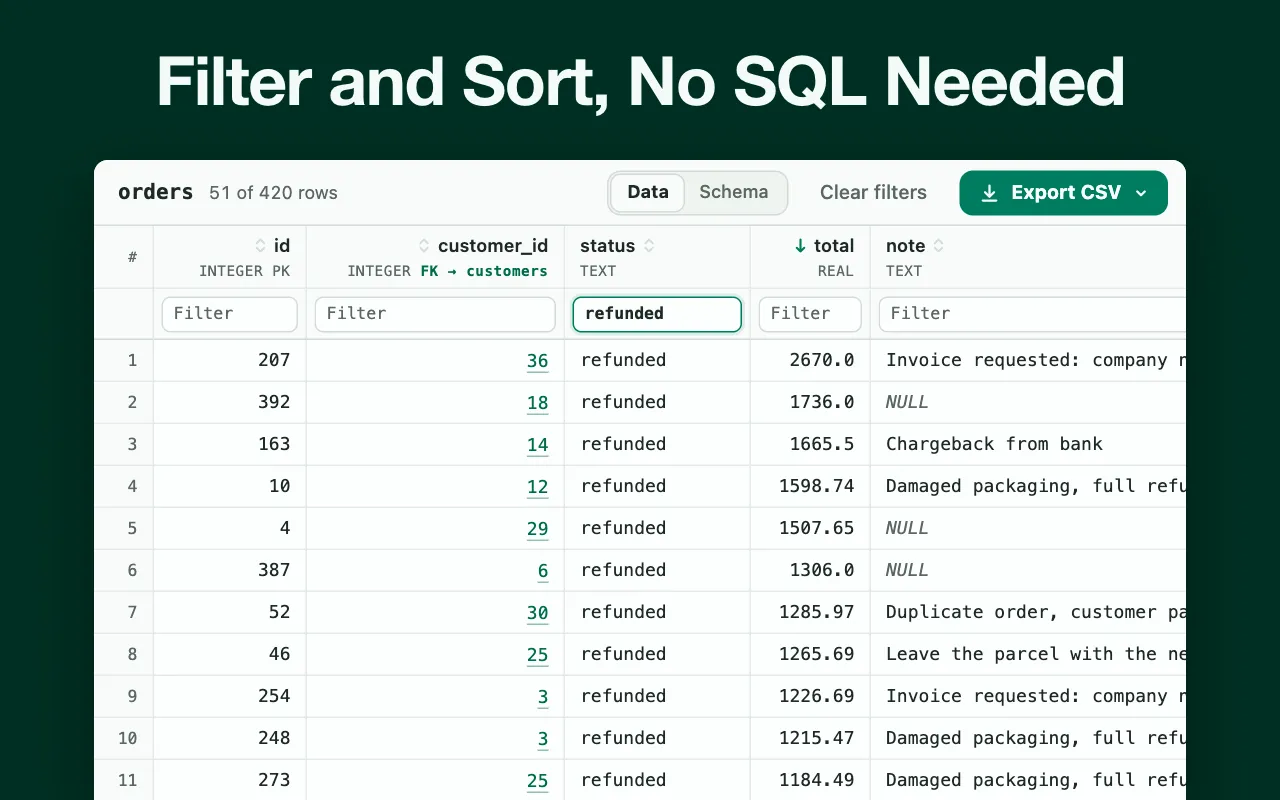
- Grid with a filter box under each column and sorting by clicking the header
- Foreign key values work as links to the row they point to
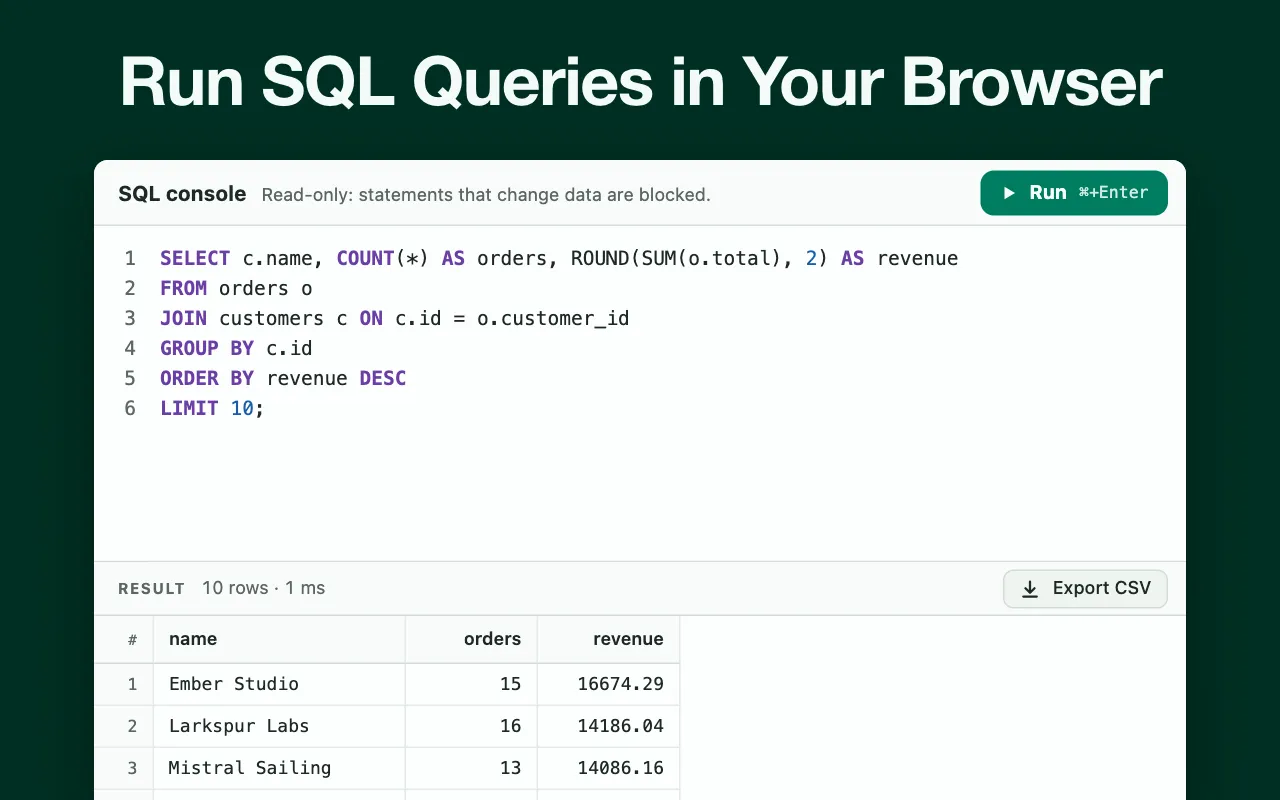
- Read-only SQL console: run a query with Ctrl+Enter and stop a long one
- CSV export of filtered rows, a whole table or a query result
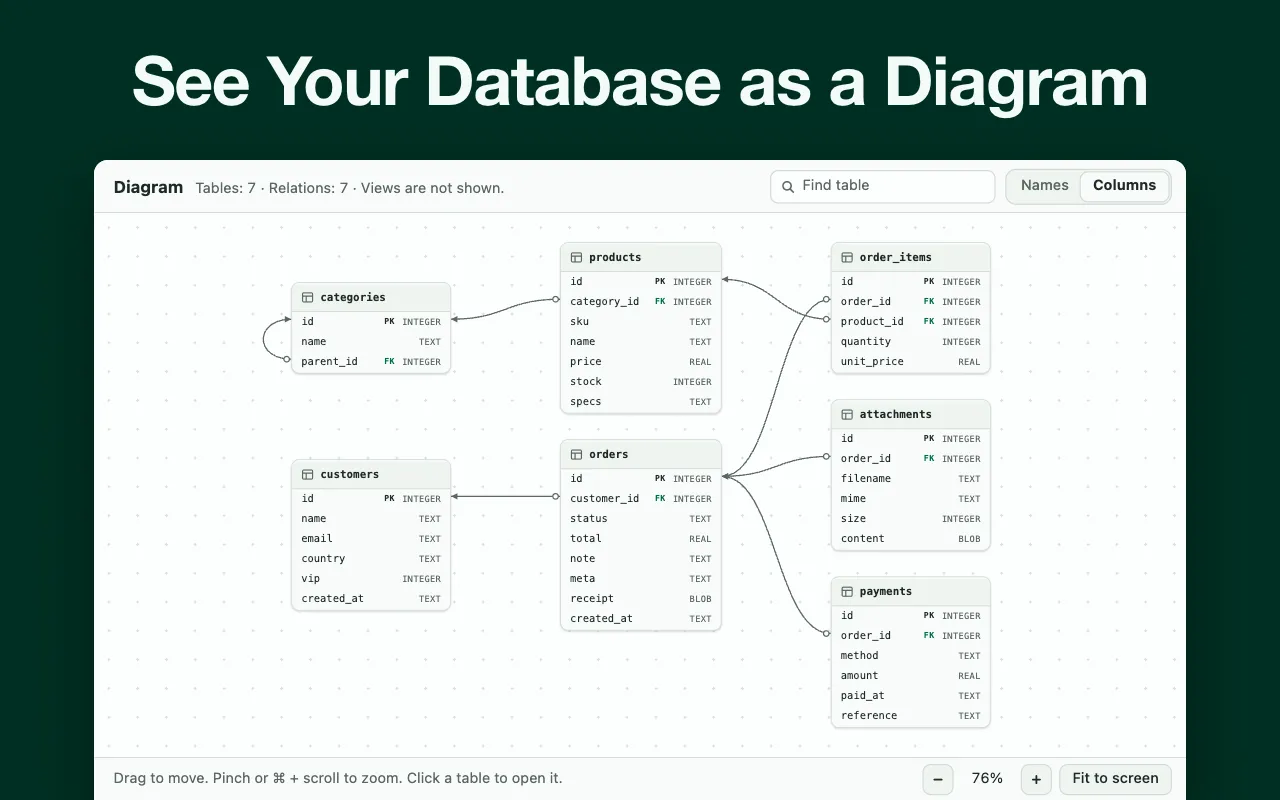
- Schema tab with CREATE statements, indexes and triggers, plus a diagram of declared relations
How it works
- Open the explorer from its toolbar icon, or with Alt+Shift+D; it gets a tab of its own.
- Drop your .db, .sqlite3 or .db3 file on that tab, or pick it with Open file. If you want a trial run first, the start screen offers a sample database. While a file loads, you see a real percentage, and if it cannot be read, a message tells you why.
- Choose what to look at from the sidebar, which lists the tables, each with its row count, and the views.
- Type into the box under a column name to filter, and click a header to sort. Long text, JSON and BLOB values open in a row panel, where JSON is formatted and a BLOB can be shown in hex or saved as a file.
- Click a foreign key value to jump to the row it points to.
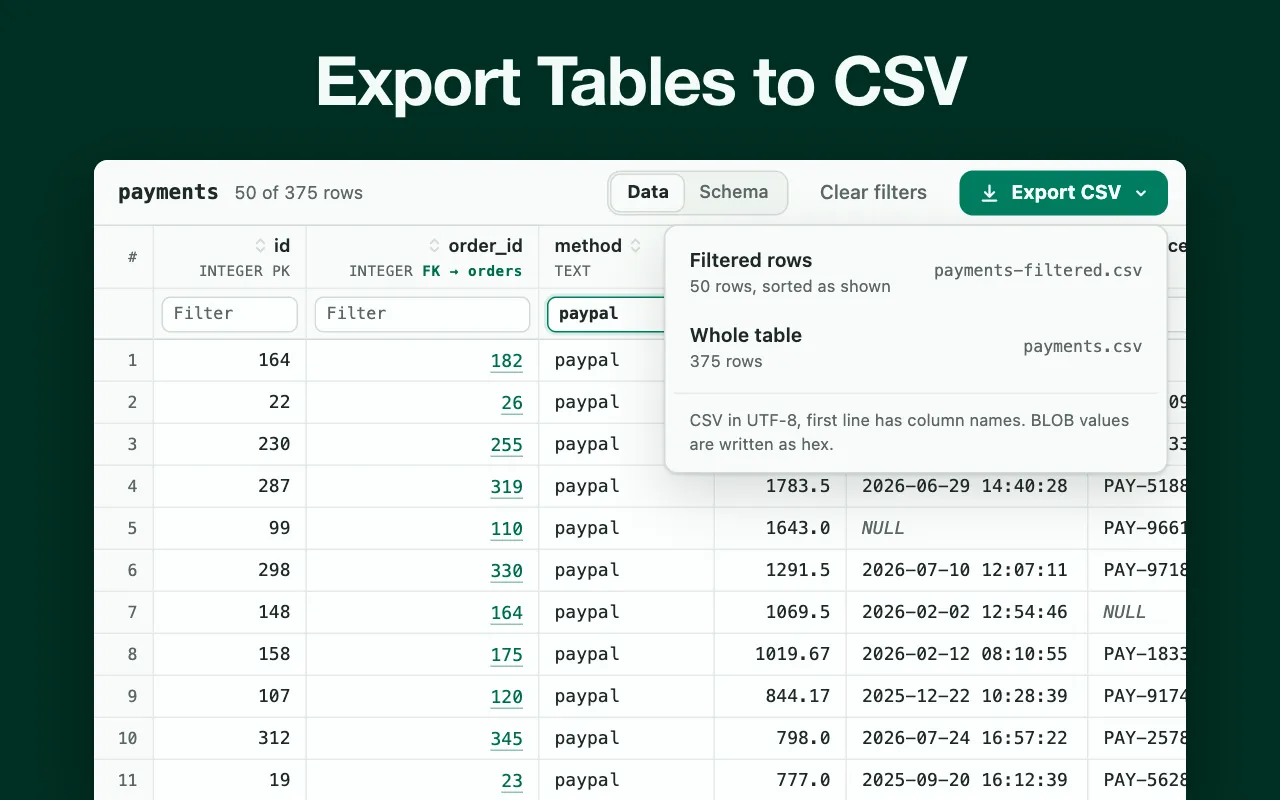
Queries and CSV export
The grid answers most questions, and there is a SQL console for the rest. Type a query, press Ctrl+Enter and read the result. Joins and aggregates run as written, and a long query can be stopped. The console is read-only, so statements that would change data are blocked, and the file on your disk stays as it was.
CSV export works three ways: the filtered rows exactly as sorted on screen, the whole table, or the result of a query.
Who it is for
- Developers checking what an app keeps in its local storage.
- Analysts handed a database file who want the figures without installing anything, and students who want to explore one without the command line.
- QA engineers reading database dumps attached to bug reports.
- Support teams looking at SQLite logs sent by a customer.
What it can't do
- Read-only: you can view and export data, but not edit it.
- Encrypted databases (SQLCipher, SEE) cannot be opened.
- Files larger than 1 GB are not supported.
- Reads SQLite files only; MySQL or PostgreSQL servers and .sql dumps are out of scope.
- Foreign key links and diagram lines appear only for relations declared in the file.
- When the database is in WAL mode, the explorer warns you that recent changes may be missing.
Permissions and your data
Does not read or change any web page on its own.
storage- Keeps the draft of your SQL console query and the state of the rating question; file names, paths and database contents are not stored.
SQLite Explorer guides
- How to see a table's schema in SQLite (the DESCRIBE equivalent)
SQLite has no DESCRIBE. Use .schema for the CREATE statement or PRAGMA table_info for the columns, and see what each one leaves out.
· 7 min read - How to list all tables in a SQLite database
List the tables in a SQLite database with .tables, a sqlite_schema query, PRAGMA table_list or Python, and see why each method returns a different list.
· 7 min read - How to export a SQLite table or query to CSV and Excel
Export a SQLite table or query to CSV with one sqlite3 command, open it in Excel with .excel, and avoid the 300-character cut we saw in SQLite 3.53 and 3.54.
· 7 min read - What is a .db file, and how do you open one?
A .db file is often a SQLite database, but not always. How to check yours, open it on Windows, Mac or in Chrome, and what to do if it is encrypted.
· 7 min read
Try SQLite Explorer
Free. Remove it any time from the Chrome toolbar.