 Python Runner
- Turn on Linux in Settings, open the Terminal and check python3 --version; if Python is missing, install it with apt.
- If pip refuses to install a package, create a virtual environment with python3 -m venv and install it there.
- On a school Chromebook the admin decides on Linux, extensions and Colab, so a browser option may be all you get.
On this page
Yes, you can run Python on a Chromebook. Turn on the Linux development environment in Settings, open the Terminal and type python3. Google’s Chromebook help says Linux is off by default, setup can take 10 minutes or more, and at work or school you might not be able to use it. If Settings will not let you turn Linux on, Colab or Python inside a browser tab may be allowed instead; both have limits, covered below.
Check which route your Chromebook allows
There are three routes: the Linux environment, a hosted notebook such as Colab, and Python that runs inside a browser tab. Which ones you get depends on the device and on the account.
Start in Settings: open About ChromeOS, then Developers. If you see “Linux development environment” with a Set up button, the Linux route is open to you. If it is missing or will not turn on, either the device does not support Linux or the account is not allowed to use it.
Hardware is a limit only on older models. All devices launched in 2019 or later, and any device still receiving updates, support Linux, which the Chromium containers docs call Crostini.
The account can also rule Linux out. Administrators control access to containers and VMs from their management console, and child accounts get no Terminal at all: “Terminal is not supported in child accounts,” says Google’s Linux on ChromeOS FAQ.
| Your situation | What to try |
|---|---|
| Personal Chromebook, Linux option present | The Linux environment |
| School or work Chromebook, Linux allowed | The Linux environment, same steps |
| Linux turned off by the admin | Colab or Python in a browser tab, if the admin allows them |
| Child account | A browser route, since there is no Terminal; a parent may need to approve extensions |
Run Python in the Linux development environment
- Open Settings, then About ChromeOS, then Developers.
- Next to “Linux development environment,” select Set up.
- Wait for setup to finish.
- Open the Terminal. You now have a Debian environment where you can install tools with the APT package manager.
Check whether Python is already there:
python3 --versionIf the command prints a version number, Python is ready. If the shell says python3 is not found, install it with APT:
sudo apt update
sudo apt install python3
To run a script, save it as a file and pass the file name to python3. A one-line test:
echo 'print("Hello from Linux")' > hello.py
python3 hello.py
Typing python3 on its own opens the interactive prompt, where each line runs as you press Enter. Type exit() to leave it.
You do not need to build Python from source. Some tutorials download a source archive and compile it. The python.org downloads page has no ChromeOS installer and says that “for most Unix systems, you must download and compile the source code.” The Chromebook’s Linux environment is Debian with APT, so the two apt commands above give you a working Python.
Install packages with pip in a virtual environment
Other tutorials stop at sudo apt install python3-pip. After that, the first pip install in the Linux environment can fail. Debian 12 marked its own Python interpreters as externally managed, and Debian’s pip “will refuse to manually install packages” on them, the Debian 12 release notes explain. We found no official page that says which Debian release a new Chromebook Linux setup runs. If pip stops with error: externally-managed-environment, this rule is the reason.
The fix is a virtual environment. PEP 668, the Python standard behind the error, says the installer’s message should suggest that you create one to install packages.
The venv tutorial calls a virtual environment “a self-contained directory tree” with its own Python and packages. Create one, activate it, then install:
python3 -m venv ~/venvs/class
source ~/venvs/class/bin/activate
pip install requests
While it is active, python and pip use the environment, and packages land in that folder instead of Debian’s Python. Run deactivate to leave it, and run the source line again in each new Terminal window.
If python3 -m venv stops and says ensurepip is not available, install Debian’s venv package, then run the venv command again:
sudo apt install python3-venvIf what you want is a Python application rather than a library for your own scripts, and Debian does not package it, the release notes point to pipx instead.
You will also find advice to override the error and install system-wide anyway; a Python forum thread is titled after exactly that habit. Skip it and use the virtual environment above.
When your school has turned Linux off
On a managed Chromebook the admin sets three things separately:
- Linux. Google’s ChromeOS device policies page describes an admin setting that allows or blocks “virtual machines needed to support Linux apps.”
- Extension installs. Admins choose which apps and extensions users can install from the Chrome Web Store. Under the extension install policy, allowlist mode means users can install only the ones the admin allows.
- Colab. For Workspace users, Colab’s FAQ says access follows the Workspace on/off control.
If your admin has turned on extension requests, the store page shows a Request button. Click it, confirm, and the request goes to your admin. If the admin rejects it, the status reads “Blocked by admin,” per Google’s extension request guide.
All three are the admin’s settings, and nothing in your own Settings changes them. Ask your teacher or the IT team for the specific thing you need: Linux turned on for your account, a named extension approved, or Colab enabled. A request that names the setting is easier to act on than “Python doesn’t work.” Until then, use whichever route is already allowed.
Python in a browser tab, and what it cannot do
According to its FAQ, Colab is a hosted Jupyter notebook service that needs no setup and is free to use. Because it is hosted, it needs a connection, and on the free version a notebook can run for at most 12 hours. On a school account it depends on the Workspace control above.
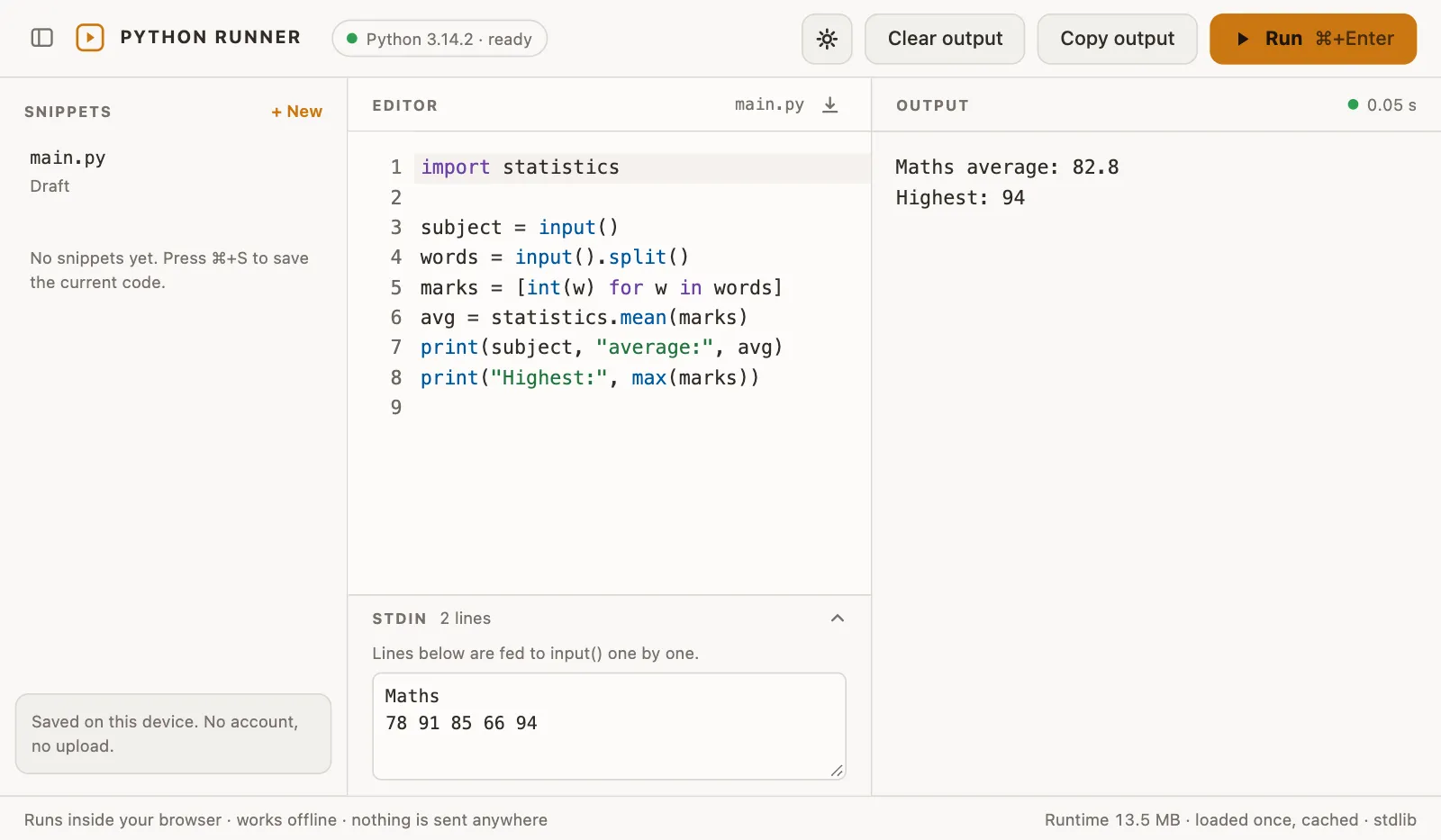
The other browser route runs Python inside the page itself, compiled to WebAssembly. Pyodide is one such build, and Pyodide’s constraints page lists what is lost: tkinter, turtle and venv are removed from the standard library, and threading, multiprocessing and sockets can be imported but do not work. So browser Python suits scripts that read input, compute and print.
For Python in a browser tab without an internet connection, we make a Chrome extension, Python Runner. It carries Pyodide inside the extension, works offline, and runs in Chrome 116 and later. It has an editor with a Run button or Ctrl+Enter, and a stdin field for scripts that call input(). The limits are firm: standard library only, so no pip and no numpy, pandas or requests (for those, use the Linux route above); code cannot reach the network or your files, and files do not survive a restart; there is no graphics output, so turtle and matplotlib windows are out; and it runs a whole script at a time rather than one line at a time like an interactive console. The first launch takes a few seconds while the interpreter warms up. A school or work admin can block extension installs; the school section above shows how to request one.
Coding on a Chromebook beyond Python
For other languages the choice is the same: Linux if it is allowed, a browser tab if not. With Linux on, APT installs compilers, code editors and other tools that Debian packages, the same way you installed python3. To see whether a package exists, search for it:
apt search <name>Without Linux, you are limited to tools that run in a browser tab, and on a managed Chromebook to the ones your admin allows.