 Read Text Aloud
- In Microsoft Edge, open the PDF and press Read aloud in its toolbar, or Ctrl+Shift+U (Command+Shift+U on a Mac).
- In the free Acrobat Reader, choose View > Read Out Loud > Activate Read Out Loud, then Read This Page Only or Read to End of Document.
- Macs, iPhones, Android phones and Windows can speak selected or on-screen text. A scanned PDF stays silent until its text is recognized.
On this page
In Microsoft Edge, open the PDF and press Read aloud in its toolbar, or press Ctrl+Shift+U. In the free Acrobat Reader, choose View > Read Out Loud > Activate Read Out Loud, then Read This Page Only or Read to End of Document. Macs, iPhones, Android phones and Windows PCs can speak selected or on-screen text with their own speech settings. If a PDF stays silent in every one of them, it is probably a scan without a text layer.
Which tools read the whole PDF and which read only a selection
Free tools read a PDF at three scopes: the whole file, the screen, or a selection. Edge and Acrobat Reader read the file itself, so nothing has to be selected first. The speech settings built into Mac, Windows, iPhone, Android and Chromebook read the screen: selected text, the current window, or everything shown.
Online readers that take an upload read the file on their servers, so the PDF leaves your computer.
| Tool | Where it runs | What it reads | How to start |
|---|---|---|---|
| Microsoft Edge | Windows and macOS | The whole file | Read aloud button or Ctrl+Shift+U |
| Acrobat Reader | Windows and macOS | The whole document or the current page | View > Read Out Loud |
| Speak selection (Mac) | macOS | Selected text; with nothing selected, the window’s text | Option-Esc |
| Narrator (Windows) | Windows 10 and 11 | From the cursor onward | Windows + Ctrl + Enter, then Narrator + R |
| Speak Screen and Speak Selection (iPhone) | iOS | Text you select, or everything on the screen | Speak button, or a two-finger swipe down |
| Select to Speak (Android) | Android | The whole screen, or text the camera sees | Tap Play |
| Select-to-speak (Chromebook) | ChromeOS | The text you highlight | Search + S |
Read a PDF aloud in Microsoft Edge
Edge’s PDF reader works across Windows and macOS, and Read aloud has been part of it since version 84. Microsoft’s Edge PDF docs describe it as a way to listen to PDF content while doing other things, and note the reading aid: “The highlighting shows the text that is currently being read.”
To start it, use the Read aloud button in the PDF toolbar. The Edge team’s post wrote: “In the toolbar along the top, you will see ‘Read aloud’ as an option.” The post is from 2020, and the toolbar may have moved since.
The shortcut starts and stops it. Edge’s keyboard shortcuts list Ctrl+Shift+U on Windows and Command+Shift+U on a Mac as “Start or stop Read Aloud”.
Voice options in the Read aloud bar change the voice and the speed. Microsoft’s Read aloud settings page says the speed starts at Normal “and you can tweak the slider to speed up or slow down the pace of narration”. That page is about Read aloud on web pages and does not mention PDFs.
Use Read Out Loud in Adobe Acrobat Reader
Acrobat Reader is Adobe’s free reader app, and its Read Out Loud guide gives the steps. Adobe’s steps begin with the page: “Open Reader and navigate to the document page you want to have read aloud.” Then, from the top-left menu, click View, then Read Out Loud, and pick Read This Page Only for the page you are on or Read to End of Document for the whole file. If you want the whole file, go to page 1 before you start.
Read Out Loud has to be switched on first, and Adobe’s UK how-to says: “Select Activate Read Out Loud to begin PDF Text-to-Speech.”
The voice and the pace sit under Edit, then Preferences, then Reading. Adobe’s page says to “Remove the checkmark on Use Default Voice, and finally choose the narration voice you like from the dropdown list”, and to adjust the pace by raising or lowering the Words Per Minute count. Words Per Minute is a rate, not a time; to see how many minutes a document takes at a given rate, see how long reading takes.
Use the speech built into Mac, Windows, iPhone and Android
These read the screen rather than the file.
On a Mac
Choose Apple menu, System Settings, Accessibility, then click Read & Speak and turn on “Speak selection”. Pressing Option-Esc then speaks what you have selected; Apple’s Mac speech guide adds: “If no text is selected, available text items in the current window are spoken.” In many apps, you can also choose Edit > Speech > Start Speaking. macOS 15 and earlier call the same pane Spoken Content.
On Windows
Narrator is the screen reader built into Windows. To launch Narrator, press the Windows logo key + Ctrl + Enter; to stop it, press these keys once more. Microsoft’s Narrator guide gives both.
Once it is on, Narrator voices what you move to on the screen, so for a PDF the simpler free path is Edge or Acrobat Reader. To read from where focus or your cursor is, press Narrator + R, as Narrator’s reading chapter describes.
On an iPhone or iPad
Tap Settings, Accessibility, then tap Read & Speak. Apple’s iPhone guide says to “Turn on Speak Selection to have iPhone speak the text you select”: select the text you want spoken, then tap Speak. For everything on the screen, turn on Speak Screen and “Swipe down with two fingers from the top of the screen”. The controls that appear let you pause, adjust the rate and move through the content. On iOS 18 and earlier the same settings are called Spoken Content.
On Android
Tap Accessibility, then tap Select to Speak. Once it is on, Google’s Select to Speak help says: “To hear everything, tap Play.”
On a Chromebook
Select-to-speak sits under Settings, Accessibility, Text-to-Speech. Highlight the text to be read, then press the Search key + s; to stop, “press Ctrl or the Search key”, as the Chromebook Select-to-speak help puts it. That page describes highlighted text, not PDFs.
Reading a PDF that is open in Chrome
Chrome has a PDF viewer of its own. Chrome’s PDF help covers opening, downloading, saving to Drive, navigating, annotating and turning scans into selectable text. Reading a PDF aloud is not among its topics.
Google’s Reading mode is the closest feature, and Chrome’s Reading mode page says: “When you use reading mode, you can listen to the text on a website.” PDFs are not mentioned there, so whether it reads one is not documented.
Select the text for a system speech tool, or open the file in Edge or Acrobat Reader.
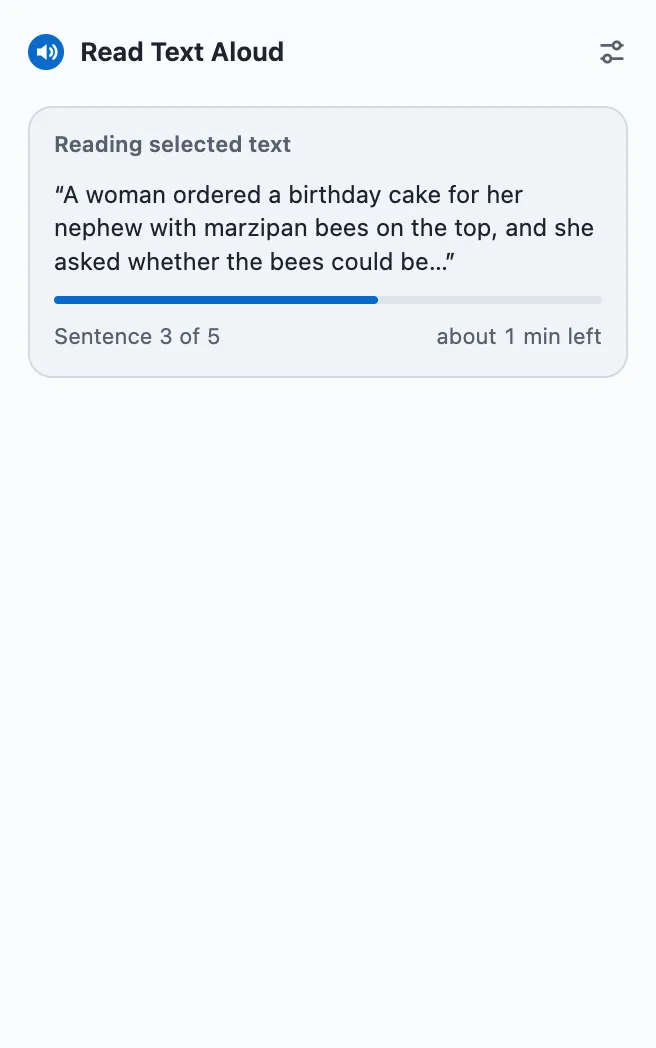
In Chrome’s PDF viewer, Read Text Aloud, our extension, reads a passage you select: select the text, right-click it and choose Read selection aloud. It reads with a voice on your computer by default; its toolbar popup shows where it is, with pause and stop. A selection is read to its end, even half a page of it; a sentence wrapped across lines comes out in phrases, pausing briefly at each line break. Clicking the icon does not start reading a PDF: it shows “Select the part of the PDF you want to hear” with a Paste text button, where copied text can go. Its limits in a PDF: only the selected passage is read, never the whole file, and there is no sentence highlight and no player on the page, because no page script is injected. A page without selectable text gives it nothing to read, and it does not read Google Docs from the page; paste the text instead. It does not read Chrome’s own pages, the Chrome Web Store or the New Tab page; the PDF viewer is not one of those, because its tab keeps the PDF’s address. A voice marked Online sends the text to Google, no audio file is saved, and it needs desktop Chrome 116 or later.
Why a PDF won’t read aloud
Select a word in the PDF first. If you cannot select text, there is nothing for any reader to take: the file is a scan, images of the pages rather than text. Adobe’s condition is the same: the text must “not be in an image but is recognized as text by Acrobat Reader.”
A scan is not a dead end on desktop Chrome. Google’s PDF help says scanned PDFs of physical documents are “automatically converted to be searchable and selectable”, that after the conversion “you can highlight, search, copy, paste, and find text within the document”, and that the conversion “is completed on your device without sending any data to Google or third parties.” The text can then be copied into any reader.
On Android, Select to Speak also reads through the camera: “You can point your camera at pictures or text to hear them read or described aloud with OCR.” That is the camera looking at paper, not a scan on the screen. Saving the speech as an audio file is outside this guide.