ExtensionsReadingRead Text Aloud
 Read Text Aloud
Read web pages aloud with a text to speech Chrome extension
A long article you would rather listen to, a draft you want to check by ear, or eyes that are tired by the end of the day. Read Text Aloud reads the page to you in Chrome: click its icon, and it starts with the main article, highlights the sentence you hear and keeps going while you look away.
Add to Chrome — free (Read Text Aloud)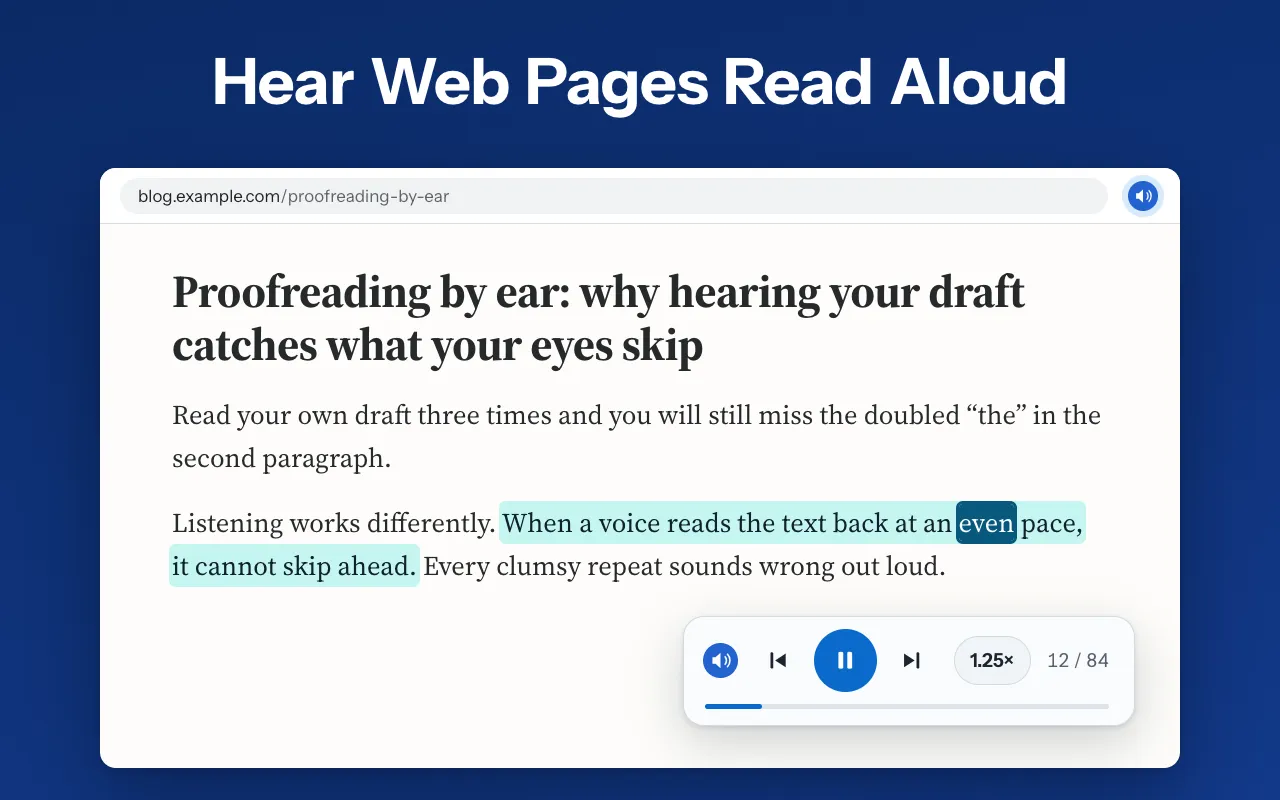
There is no account and nothing to set up.
What it does
Read Text Aloud reads the main article of a page, a selection or text you paste with the voices on your computer, and highlights each sentence as you hear it.
- Reads the main article and skips menus, sidebars and footers, or reads only the text you selected
- Highlights the sentence being read and, with voices that report words, the current word
- A player in the corner of the page to pause, go back or skip a sentence, change speed and stop
- Five speeds from 0.75× to 2×, changed while it reads
- Voices on your computer by default, Google's online voices if you pick one, remembered per language
- A Paste text tab for words that are not on a web page
How it works
- Open an article, a blog post or any long page and click the toolbar icon, or press Alt+Shift+R (⌥⇧R on a Mac). Reading starts straight away.
- The extension finds the main text, splits it into sentences and reads them one by one. The page scrolls to keep the highlighted sentence in view, and the popup shows the sentence number and the minutes left.
- To hear part of a page, select it first. To start at a paragraph, right-click it and choose Read from here; Read selection aloud is in the same menu.
- Pause, go back or skip ahead with the player in the bottom-right corner. Reading goes on after the popup closes.
- Stop in the middle and the place is remembered for that tab, so you can continue later, even after a reload, as long as Chrome stays open.
Your own text, read aloud
Open the Paste text tab from the popup, paste or type, and press Read aloud. The text appears in paragraphs with the same sentence highlighting, next to a word count and the time left. Space pauses and resumes, and Esc stops. The text stays in Chrome’s extension storage on this device until you press Clear, so a long draft is still there next time.
Voices on your computer, or online
By default the extension reads with a voice installed on your computer, choosing Premium and Enhanced voices first where your system has them. Voices marked Online are Google voices built into Chrome. They need the internet, and Chrome sends the text being read to Google to make the sound. If an online voice cannot start because you are offline, reading carries on with a voice on your computer and the popup tells you so. In Settings, Hear this voice plays a short sample before you choose.
Who it is for
- Students who want course pages or long articles read to them, at 1.5× if they like.
- People with dyslexia, low vision or tired eyes who would rather listen than read.
- Writers who proofread by ear: a draft heard aloud gives away every clumsy line.
- Anyone who wants an article read out while cooking or tidying up.
What it can't do
- Chrome's own pages, the Chrome Web Store and the New Tab page cannot be read.
- Google Docs, Sheets and Slides cannot be read from the page; paste the text instead.
- A PDF is not read as a whole: select a passage and use Read selection aloud, without the highlight.
- Reads a language only when your system or Chrome has a voice for it, and word highlighting needs a voice that reports each word.
- Leaving or reloading the page stops reading; your place is kept for up to 10 tabs until Chrome closes.
- Speech is played, not saved: there is no MP3 or other audio file export.
Permissions and your data
Does not read or change any web page on its own.
activeTab- Gives the extension access to the tab you are on, only after you click its icon, press its shortcut or choose one of its right-click items.
scripting- Works with activeTab to add the script that finds the text, highlights the sentence and shows the player to that tab, once you start reading there.
contextMenus- Adds Read selection aloud and Read from here to the right-click menu.
tts- Speaks the text through Chrome's speech engine, with the voices on your computer or the Google voices Chrome offers.
storage- Keeps your speed, voice choices, highlight setting, pasted text and the rating prompt state on this device, and your place in a reading until Chrome closes.
Questions
Does my text leave my computer?
Can it read PDFs and Google Docs?
Which languages can it read?
Try Read Text Aloud
Free. Remove it any time from the Chrome toolbar.