 Read Text Aloud
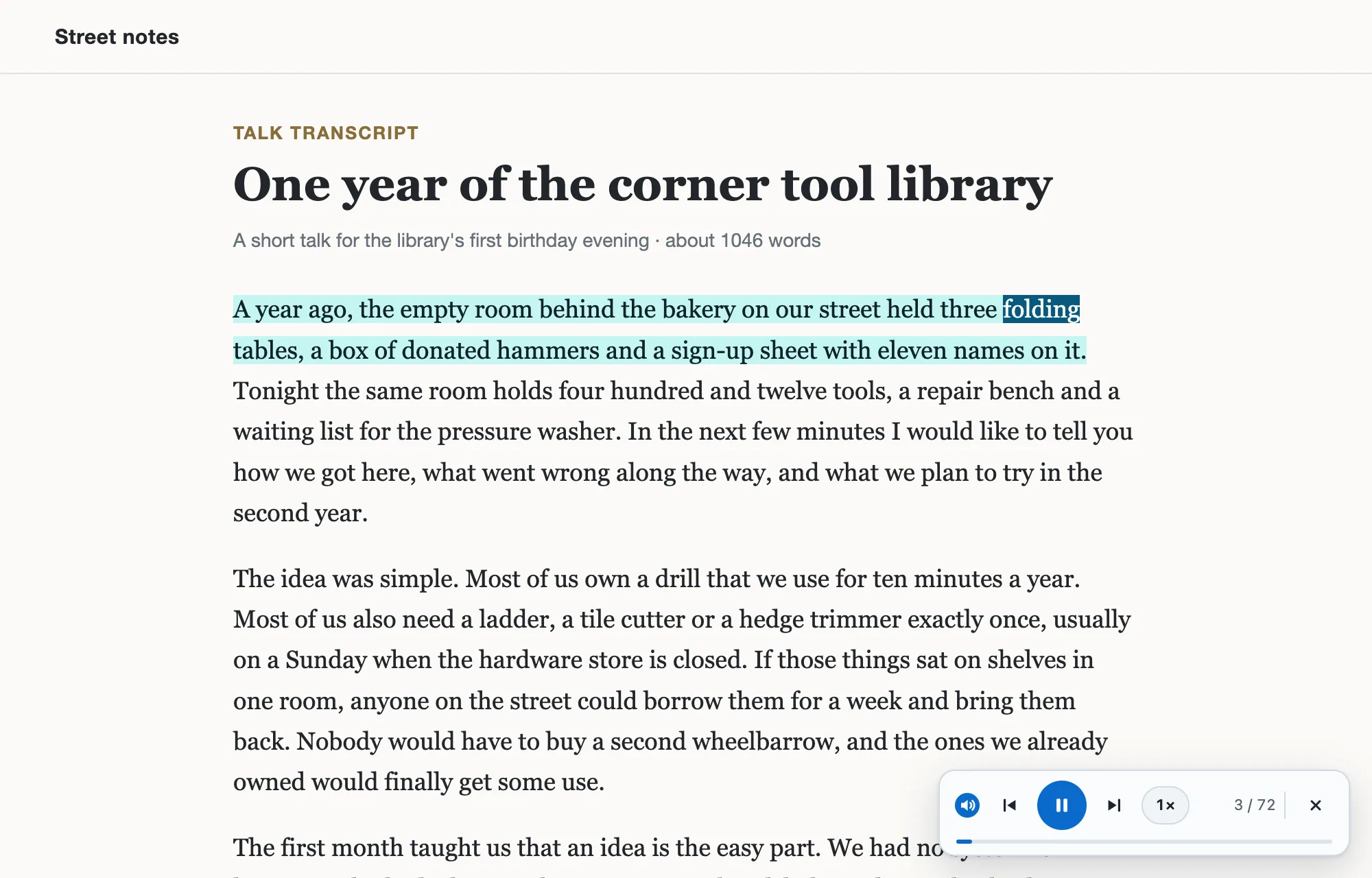
- On a computer, right-click the page, choose Open in reading mode and press Play. You can pick a voice, the speed and word or sentence highlighting.
- On a Chromebook, turn on Select-to-speak in Settings > Accessibility, then hold the Search key and drag over text to hear it.
- On Android, tap More > Listen to this page. Google requires Make searches and browsing better, which sends the addresses of pages you visit to Google.
On this page
Yes, Chrome can read a page to you, and you do not need to install anything. What you get depends on the device. On a computer, Chrome reads inside Reading mode, its simplified copy of the page, and highlights each sentence it speaks. A Chromebook can do the same and adds Select-to-speak, which reads any text you point at. On Android, Chrome has Listen to this page. On an iPhone or iPad, Google’s Chrome help lists no way to have a page read aloud.
Which read aloud feature your device has
| Device | Read aloud feature | How to start | Google’s help page |
|---|---|---|---|
| Computer (Windows, Mac, Linux) | Read aloud in Reading mode | Right-click the page, choose Open in reading mode, press Play | Chrome’s Reading mode help |
| Chromebook | Select-to-speak, plus Reading mode’s Play (K) | Settings, then Accessibility, then hold the Search key and drag over text | Google’s Select-to-speak help |
| Android phone | Listen to this page | Chrome menu > Listen to this page | Chrome’s Listen help |
| iPhone and iPad | None that Google documents | — | — |
Google announced read aloud for Reading mode in January 2024 at its Bett education show Google’s Bett announcement.
In April 2026 a Chrome update gave Reading mode a full-page view Chrome’s April update. Both features are new enough that Google’s own help pages still disagree about where read aloud lives; the sections below follow the help page written for each device.
Read a page aloud on a computer with Reading mode
Reading mode opens in a side panel with a simplified copy of the page. To open it, right-click the page and choose Open in reading mode, select the Reading mode icon in the address bar, or open the three-dot menu and pick More > More tools > Reading mode. On a Mac, ⌘+Option+R does the same; on Windows and Linux, Alt+Shift+R Google’s Reading mode help.
Press Play and Chrome reads that copy. Previous and Next jump one sentence back or forward, and Playback speed changes the pace while it reads.
Voices are handled for you: Reading mode automatically downloads Google natural voices for the page’s language, and if the download fails it falls back to your computer’s own voice for that language.
A setting under the player chooses what gets highlighted as it reads: Adaptive, Word, Sentence, or Off.
Google’s help names no Chrome version for read aloud on a computer, so there is no minimum to look up; if your side panel has no Play button, update Chrome first. Each speed changes the time a page takes: reading time by speed lists how long 1,000 words take at each pace.
Hear selected text on a Chromebook with Select-to-speak
Select-to-speak reads only the text you choose, not the whole screen. To turn it on, select the time at the bottom right of the shelf, open Settings, then Accessibility, and under Text-to-Speech turn on Select-to-speak Google’s Select-to-speak help.
To read something, press and hold the Search key and drag the pointer over the text, or highlight it and press Search+S. A Select-to-Speak icon near the time does the same from the shelf, and on a touchscreen you tap a line of text or drag your finger over an area. Each word is highlighted as it is read, and pressing Ctrl or the Search key stops it.
Playback controls pause, play, change the speed and skip lines. The voice itself, its rate and its pitch live in Settings > Accessibility > Text-to-speech > Text-to-speech voice settings Google’s voice settings help.
To turn it off, use the same toggle you turned it on with, under Settings > Accessibility. If a voice reads everything on the screen, menus included, that is not Select-to-speak but ChromeVox, ChromeOS’s screen reader; Ctrl+Alt+Z turns it off from any page.
One setting to know about: Select-to-speak can use enhanced network voices, and Google’s admin policy for them says they send text to Google’s servers to synthesize natural-sounding speech a ChromeOS admin policy.
Chromebooks also have Reading mode’s read aloud: open Reading mode, press K to play, and use the left and right arrows to move between sentences Chromebook’s Reading mode help.
Listen to a page on Android
On an Android phone, open the page, tap the three-dot menu and choose Listen to this page Chrome’s Listen help. Standard playback reads the page’s words and can highlight them as it goes.
Where it is available, AI playback is the default instead, and it needs Chrome’s language set to English. Google’s school tips post describes it as turning a page into a podcast-style conversation Google’s school tips post.
While it plays you can change the speed, pick a voice, and switch on Highlight text & auto scroll; the last two work with Standard playback only. Listening continues with the screen locked. Standard playback understands 25 languages, among them English, Spanish, French, German, Arabic, Hindi, Japanese and Russian.
Listen to this page works only with Chrome’s Make searches and browsing better setting turned on, and that setting sends the addresses of the pages you visit to Google Google’s Safe Browsing page.
The sound is not made on the phone, either. Google’s admin policy for the feature describes it as server side content distillation and audio synthesis Chrome’s admin policy.
If Listen to this page is missing from the menu, Google’s help gives a plain reason: that page is not available for playback.
There is nothing of the kind for Chrome on an iPhone or iPad. Google’s help for those devices describes Reading mode, which shows a page without distractions, and lists no way to listen to it Chrome’s iOS help.
Where Chrome’s built-in reading stops
None of the built-in features reads everything. Google’s help says Reading mode is not available on all websites and is not compatible with formats like video or forum sites; it also warns that image galleries, interactive maps, forms, quizzes, payment pages and login screens may not work as expected. The same page says Reading mode is “not yet available on Googlebook”.
If the part you want does not appear in Reading mode, Google suggests highlighting it on the original page, which triggers it to open in reading mode.
Google also warns that Reading mode can open by mistake: other apps or tools, like voice-control software, may use the same keyboard shortcut.
The help pages even contradict each other. The Chromebook Reading mode page says read aloud is “only available in Chromebook”, while the desktop page documents it for Chrome on Windows, Mac and Linux.
Phones are left out entirely: Google’s Web Store help says extensions and themes can only be used on computers Google’s Web Store help.
When you need more than Reading mode
For a computer, there is also Read Text Aloud, our extension for Chrome. Click its toolbar icon and it reads the page’s main article, or only the text you have selected, on the page itself: it highlights the sentence it is on, and the current word too with voices that report words, and scrolls to keep both in view. Right-click adds Read selection aloud and Read from here, a small player in the corner pauses, goes back, skips and changes speed between 0.75× and 2×, and a Paste text tab takes words that are not on a web page. Stop in the middle and it keeps your place for that tab until Chrome closes. It reads with the voices on your computer by default, so it works offline; pick a voice marked Online and Chrome sends the text to Google to make the sound. The extension makes no network requests of its own and needs Chrome 116 or later. Its limits: it cannot read Chrome’s own pages, the Chrome Web Store or the New Tab page; Google Docs, Sheets and Slides are not read from the page, so paste the text into that tab instead; from a PDF it reads only a passage you select, without highlighting (reading a PDF aloud is its own guide); leaving or reloading the page stops it; it plays speech and saves no audio file; a language needs a voice on your system or in Chrome; and it runs in Chrome on a computer only.
Read Text Aloud is an independent extension and is not affiliated with Google.