ExtensionsDeveloper toolsPixel Ruler
 Pixel Ruler
Measure pixels, sizes and spacing on any web page
A button sits a few pixels too low, a card is wider than the mockup, the gap between two blocks looks uneven. Taking a screenshot and counting pixels in an image editor is slow, and opening DevTools can make hover states disappear when the panel takes focus.
Add to Chrome — free (Pixel Ruler)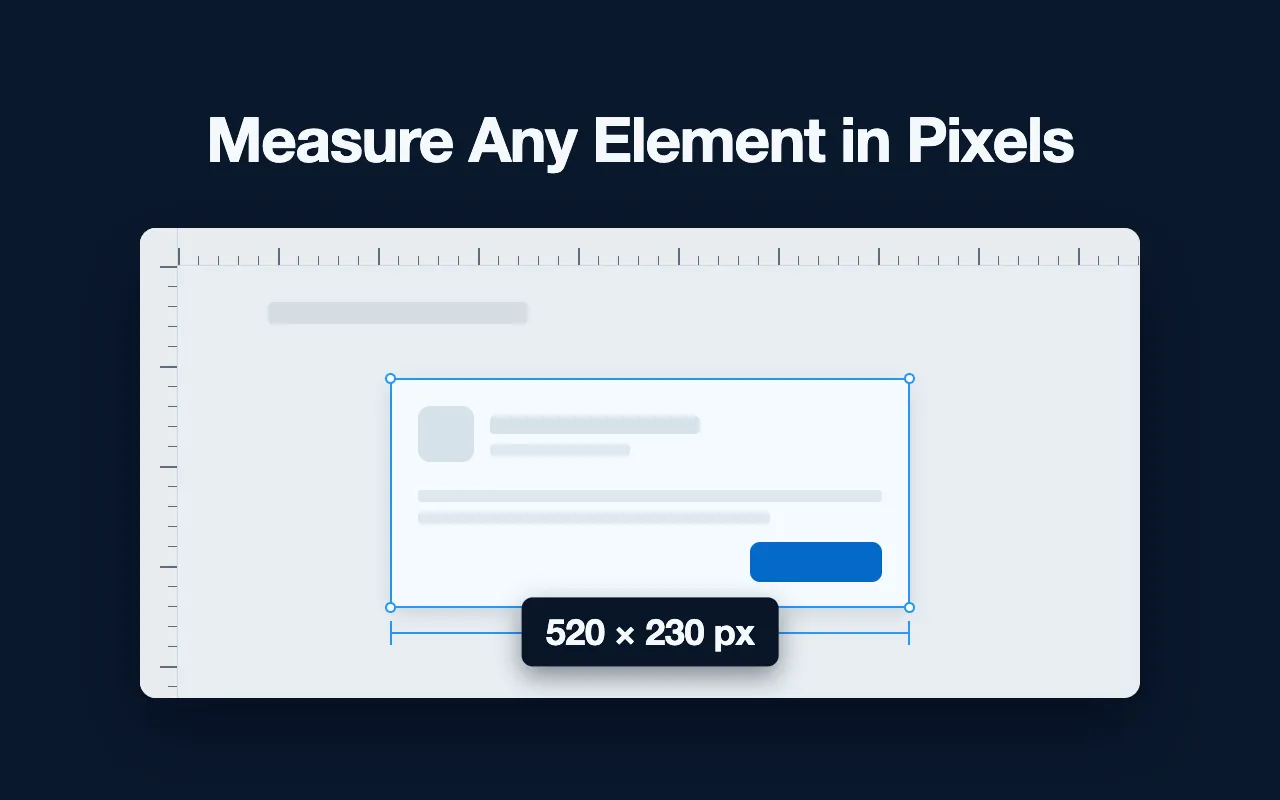
Pixel Ruler draws a ruler on top of the page you are already looking at and reports values in CSS pixels, the same unit that DevTools and your stylesheet use.
What it does
Pixel Ruler draws a ruler over the page you are viewing, so you can drag between two points or hover an element and read its size in CSS pixels.
- Drag between any two points to read the distance in CSS pixels
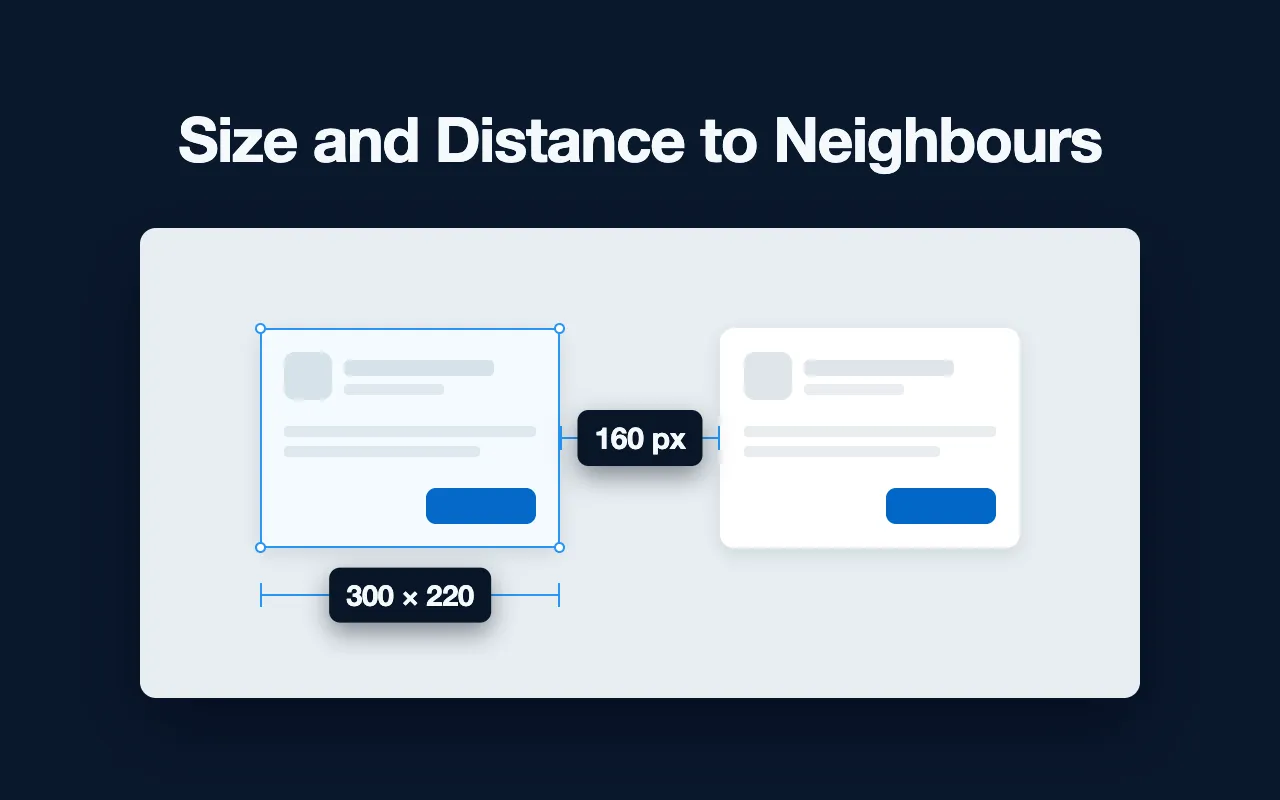
- Hover an element to see its width and height; click it to add its padding and the gaps to neighbouring blocks
- Vertical and horizontal guides for checking alignment
- Scales along the top and left edges of the window
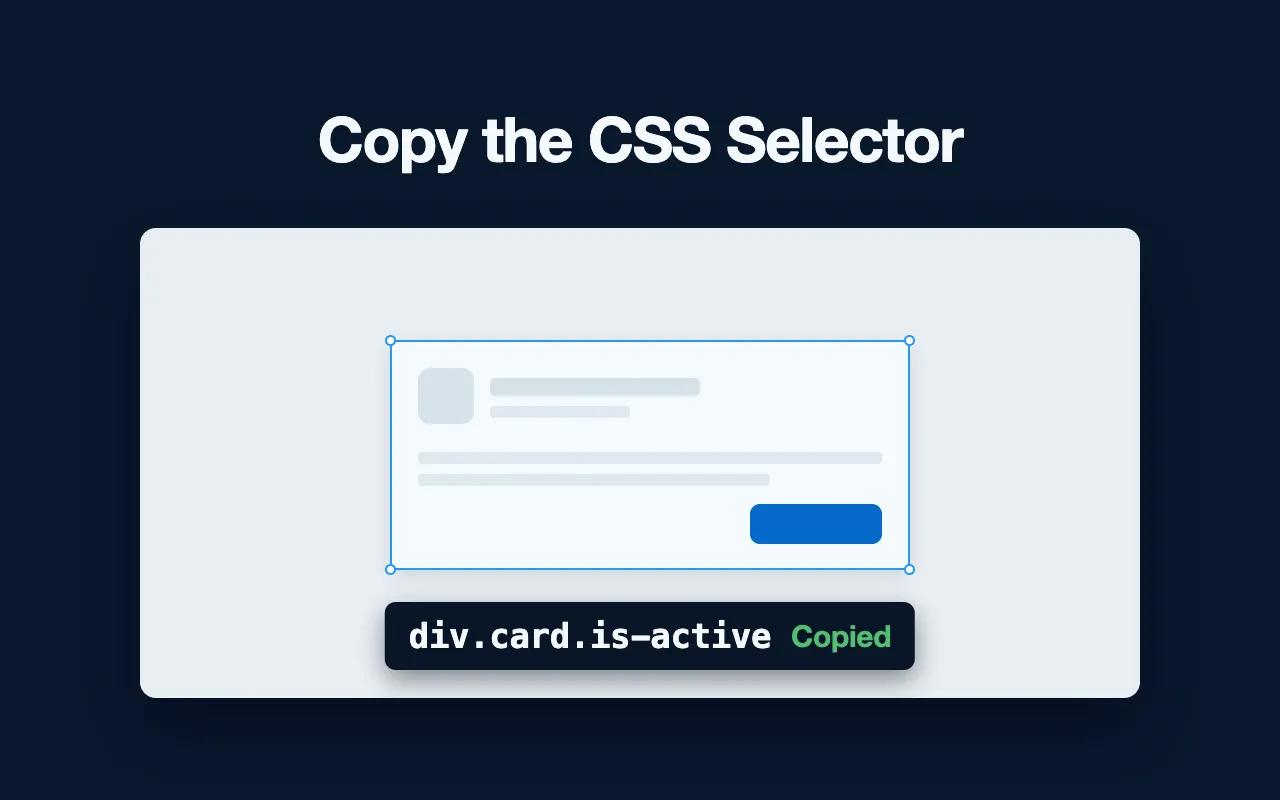
- One key copies the measured size; a click on the label of a selected element copies its CSS selector
- Shift locks a measurement to one axis, and arrow keys move the point by 1 px
How it works
- Pin the extension and open the page you want to check: a live site, a staging server or a page behind a login.
- Click the toolbar icon and choose Measure this page, or press Alt+Shift+M. An overlay covers the page, with a pixel scale running across the top and down the left side. Because the overlay is drawn inside the tab, it scrolls with the content and redraws when the layout reflows.
- Press and drag between two points to read the distance.
- Rest the pointer on an element: a label shows its width and height. Click it to see its padding and how far it sits from the elements next to it.
- Drop horizontal or vertical guides to check that blocks line up.
- Press Esc to clear the current measurement, and Esc again to close the ruler.
Where it cannot reach
Chrome blocks every extension, this one included, from its own system pages, from PDFs shown in its viewer, from the Chrome Web Store and from content inside iframes loaded from another origin. On those, the ruler will not start. Everywhere else, it stays off until you start it and is gone again after you press Esc twice.
Who it is for
- Front-end developers comparing a built page with a design mockup.
- Designers checking spacing on the live site when the handoff file is out of date.
- QA engineers who want to report a layout bug with an exact figure rather than a vague description.
- People checking how large an image or a logo is actually drawn on the page, which often differs from the size of the source file.
What it can't do
- Reports CSS pixels only, not centimetres or inches.
- Cannot measure Chrome system pages, the built-in PDF viewer or the inside of cross-origin iframes.
- Works inside Chrome tabs only; it does not measure other desktop apps or windows.
- Starts only from Measure this page in its popup or from its shortcut, and closes when you navigate away.
Permissions and your data
Does not read or change any web page on its own.
storage- Remembers four on/off settings, that the intro card was shown, your last measurement for the browser session and the state of the rating prompt.
activeTab- Gives the extension access to the current tab only after you click its toolbar icon or press its shortcut, so the ruler can be drawn there.
scripting- Places the ruler overlay on that tab when you start it; the overlay is removed when you press Esc or leave the page.
Pixel Ruler guides
Try Pixel Ruler
Free. Remove it any time from the Chrome toolbar.