ExtensionsAI toolsAI Typer
 AI Typer
AI drafting and typing assistant for Google Docs
Starting a document from a blank page takes time. AI Typer opens in the Chrome side panel next to your Google Doc and turns a sentence or two of instructions into a first draft.
Add to Chrome — free (AI Typer)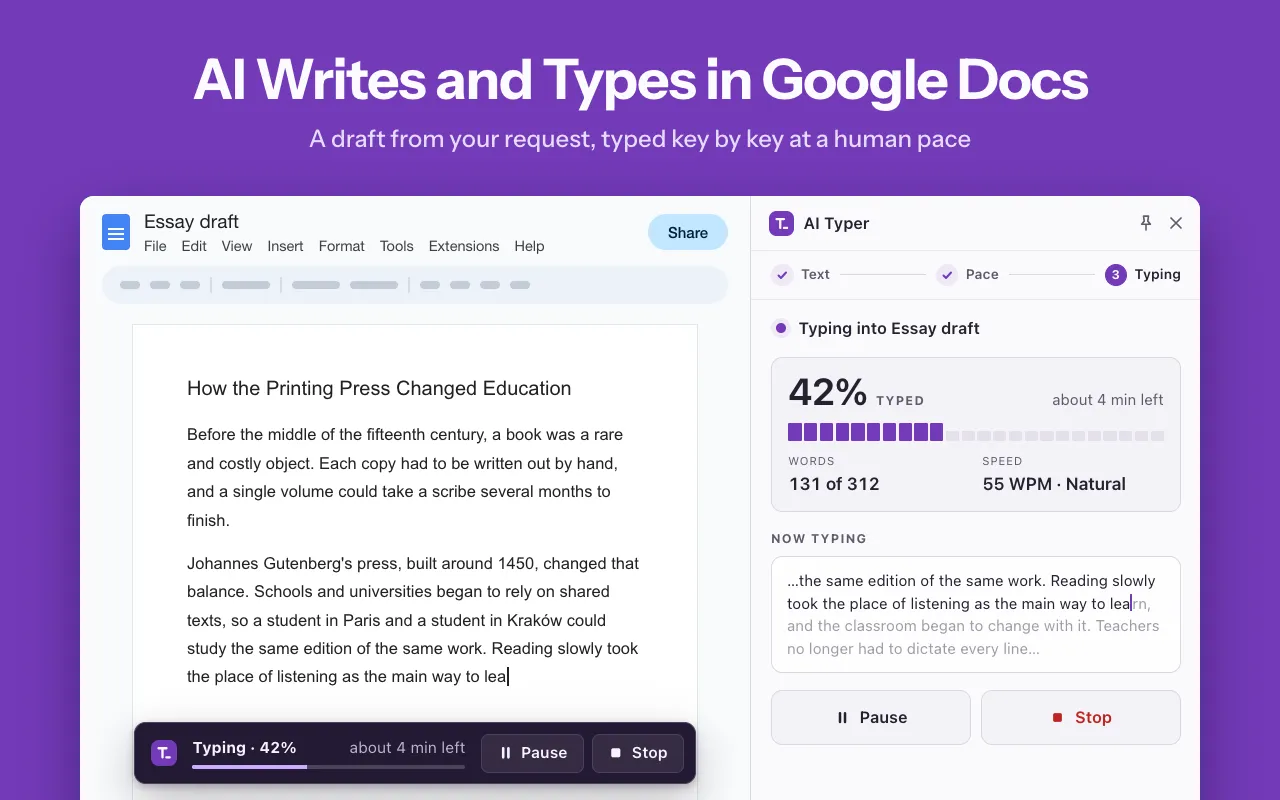
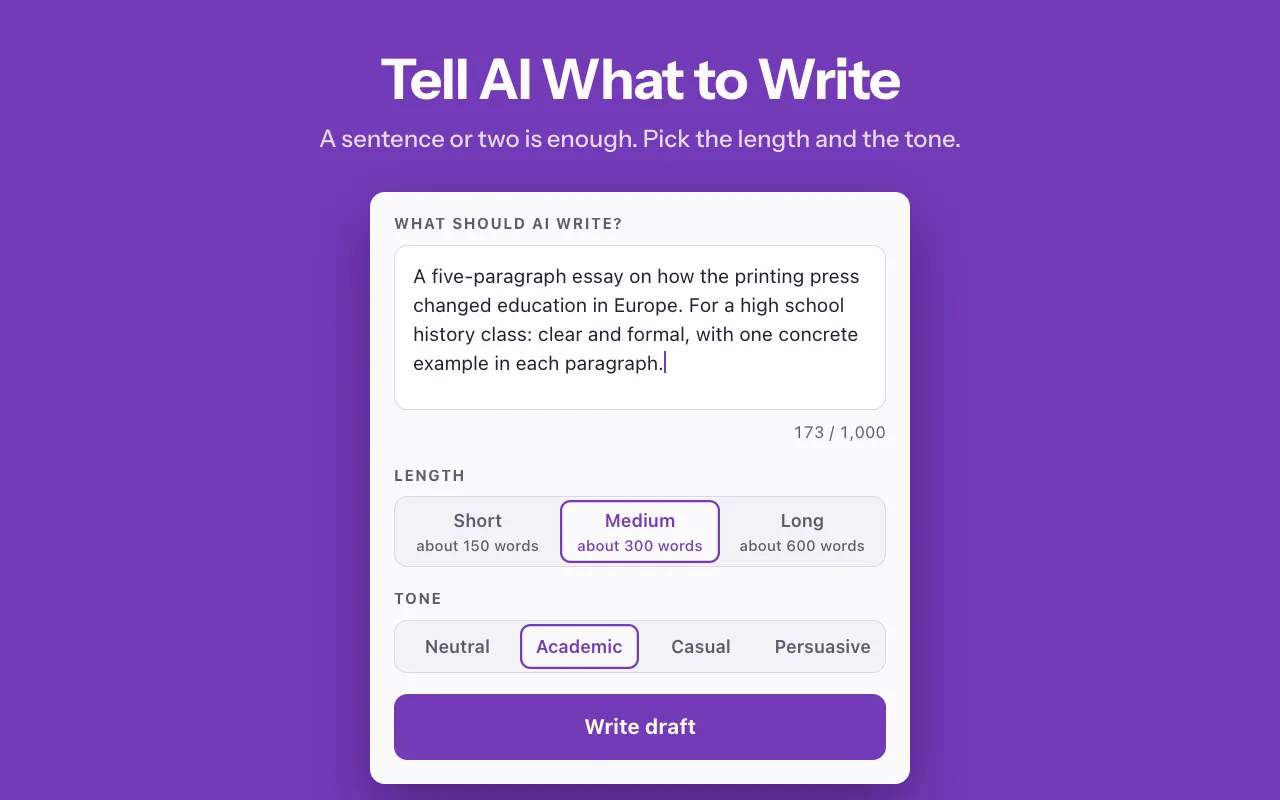
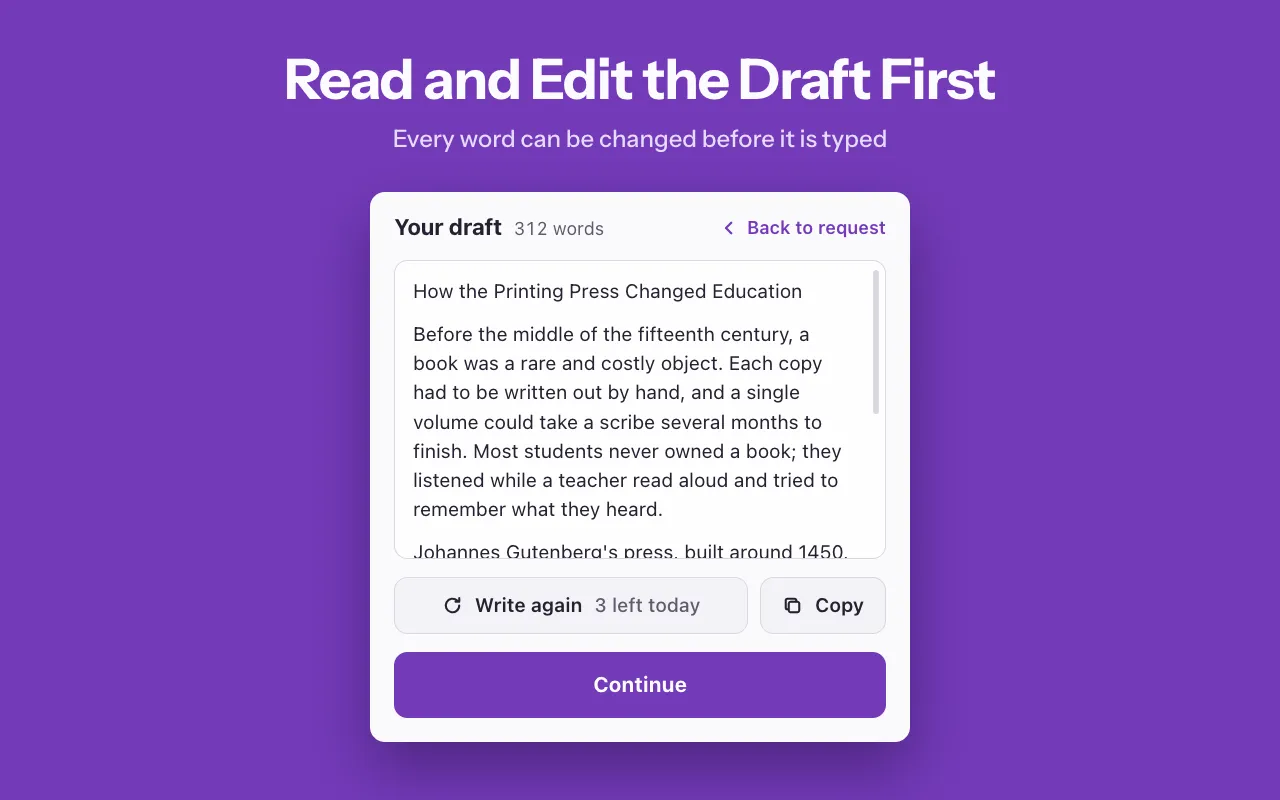
You choose the length, about 150, 300 or 600 words, and a tone: neutral, academic, casual or persuasive. The draft appears in the panel, where you can read it, change any word, ask for a new version or copy it to use somewhere else. Nothing goes into the document until you decide it is ready.
If you already have the text, skip the AI step: paste your own words and the extension types them in. Pasted text has no daily limit and does not need an internet connection. There is no account, sign-up or API key to set up.
What it does
AI Typer writes a draft from your request in a Chrome side panel, lets you edit it, and then types it into your open Google Doc at a speed you set.
- A draft from a short request, in three lengths (about 150, 300 or 600 words) and four tones
- Edit the draft in the panel, write it again, or copy it to use elsewhere
- Type in text you paste yourself, with no daily limit and no internet needed
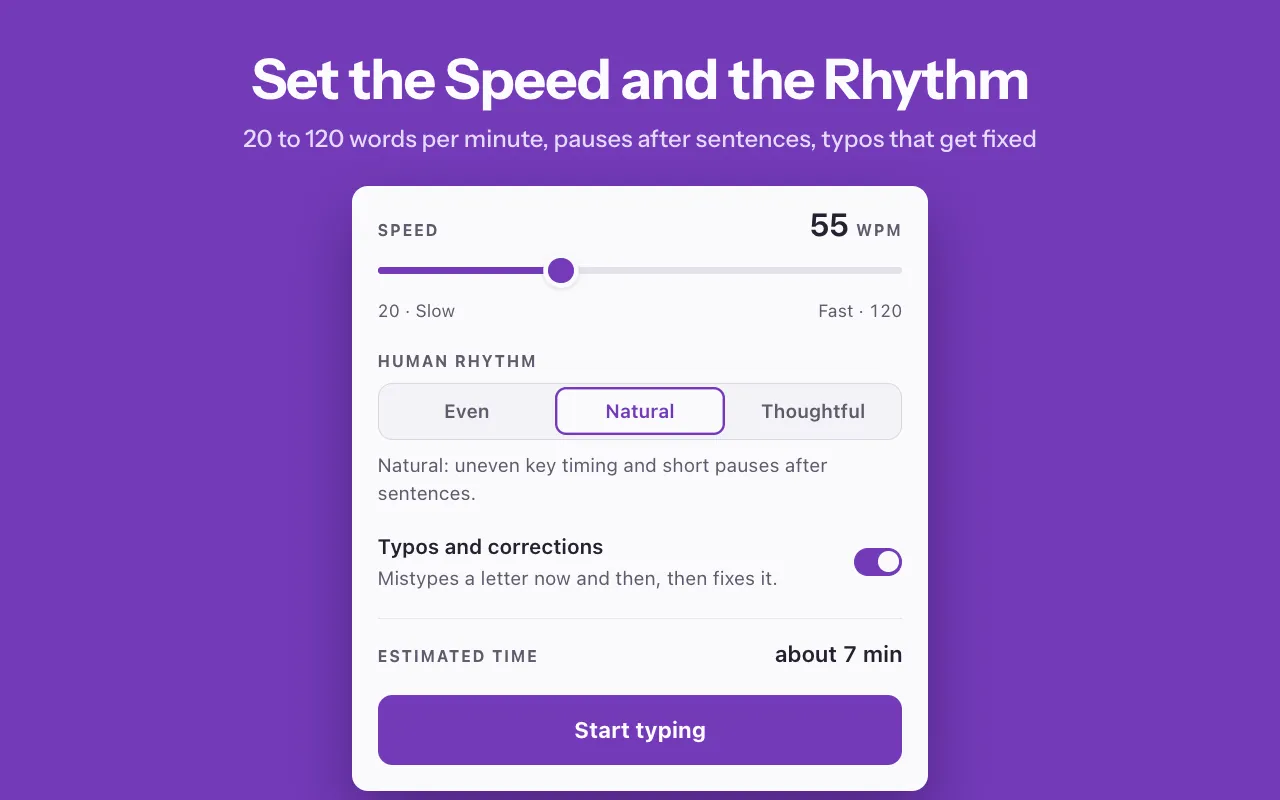
- Speed from 20 to 120 words per minute, with an estimated time before you start
- Pause, resume or stop from the panel, a small bar on the page or a hotkey
- Progress, word count and minutes left stay on screen while it types
How it works
- Open a Google Doc and click the AI Typer icon to open the side panel.
- Write a request, or paste your own text.
- Review and edit the draft.
- Set the speed, from 20 to 120 words per minute, and the pacing, from a steady rate to longer pauses before paragraphs. The panel shows an estimated time.
- Place the cursor at the spot in the document where the text belongs, then press Start typing.
Practical tips
- Read every AI draft before using it. Models can get facts wrong.
- Keep the document tab open. Closing or reloading it stops the run.
- Clicking inside the document pauses the run, so text does not land in the wrong place.
- Typing carries on if you close the panel, and the bar on the page keeps its own Pause and Stop buttons.
- Google Docs autocorrect applies to the typed text, just as it does to your own keystrokes.
- Formatting is not carried over: headings, bold, lists and links arrive as plain text, so format the document afterwards.
- Write again counts toward the five AI drafts per day, which reset at 00:00 UTC.
Who it is for
- Writers who work in short passages and want one paragraph at a time.
- People who draft a reply in the panel and then paste it where it needs to go.
- People recording tutorials, who want text to show up gradually and at an even speed.
What it can't do
- Works only in Google Docs in Chrome on a computer; Slides, Sheets and Word Online are not supported.
- Types plain paragraphs: headings, bold, lists and links come out as plain text.
- 5 AI drafts a day, with Write again counted as one; the counter resets at 00:00 UTC.
- The document tab must stay open; closing or reloading it stops the run.
- AI drafts can contain factual errors, so read each draft before you use it.
Permissions and your data
Reads and changes pages on: docs.google.com only.
https://docs.google.com/document/*- Types the text into the Google Doc you have open and shows a small status bar with Pause and Stop on that page.
sidePanel- The whole interface, from the request to the typing controls, lives in the Chrome side panel next to your document.
storage- Keeps your typing settings, a random install ID and the number of drafts left today; the request and text to type are kept only for the browser session.
scripting- Lets the extension start working in Google Docs tabs that were already open when it was installed or updated, without reloading them.
Try AI Typer
Free. Remove it any time from the Chrome toolbar.